This article explains how to issue Open Badges from Moodle using Open Badge Factory via the local_obf plugin.
TABLE OF CONTENTS
- 1. About this plugin
- 2. Connecting Open Badge Factory to Moodle
- 3. Usage
- 4. Displaying badge on user profiles
1. About this plugin
Open Badge Factory is a cloud platform that provides the tools your organisation needs to implement a
meaningful and sustainable Open Badges system.
This local_obf plugin enables users to:
- Issue badges created in Open Badge Factory to students
- Create badge awarding rules: based on course completion, based on activity completion, or on profile completion
- Get badge awarding history
- Display earned badges on profile and connect the Open Badge Passport backpack
To use this plugin you need a Pro account.
Multi-tenancy support:
- You can connect one OBF account to multiple Moodle sites.
- You can also connect multiple OBF accounts to a single Moodle site using individual OAuth2 API
keys.
Note:
This plugin can also be used for the CanCred Factory platform, powered by Open Badge Factory technology. Simply use the host name factory.cancred.ca instead of openbadgefactory.com
2. Connecting Open Badge Factory to Moodle
2.1. Plugin installation
To install the plugin, login to your Moodle site as a Site Administrator. Then navigate to Site Administration
> Plugins > Install plugins, you can either:
- Install the Plugin Directly from the Moodle Plugins Directory
- Or manually Install the Plugins from ZIP File (available on https://marketplace.moodle.com/plugins/local_obf)
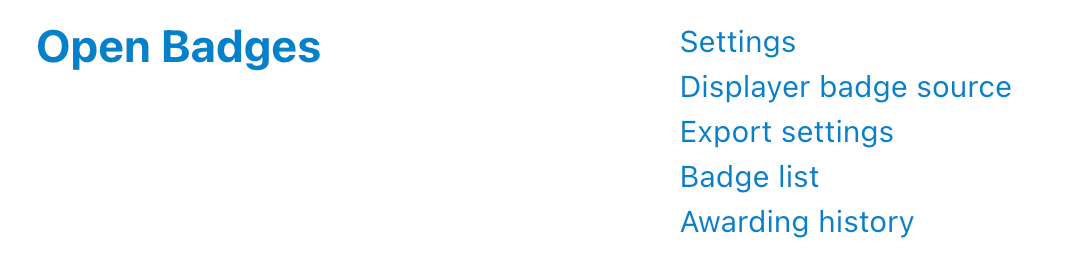
Once the plugin is installed, you can access the plugin configuration and connect your OBF account with
your Moodle site on Site Administration > Open Badges:
2.2. Establishing a connection to OBF
You need to generate an API key from OBF. Log in to Open Badge Factory and go to Admin tools > API
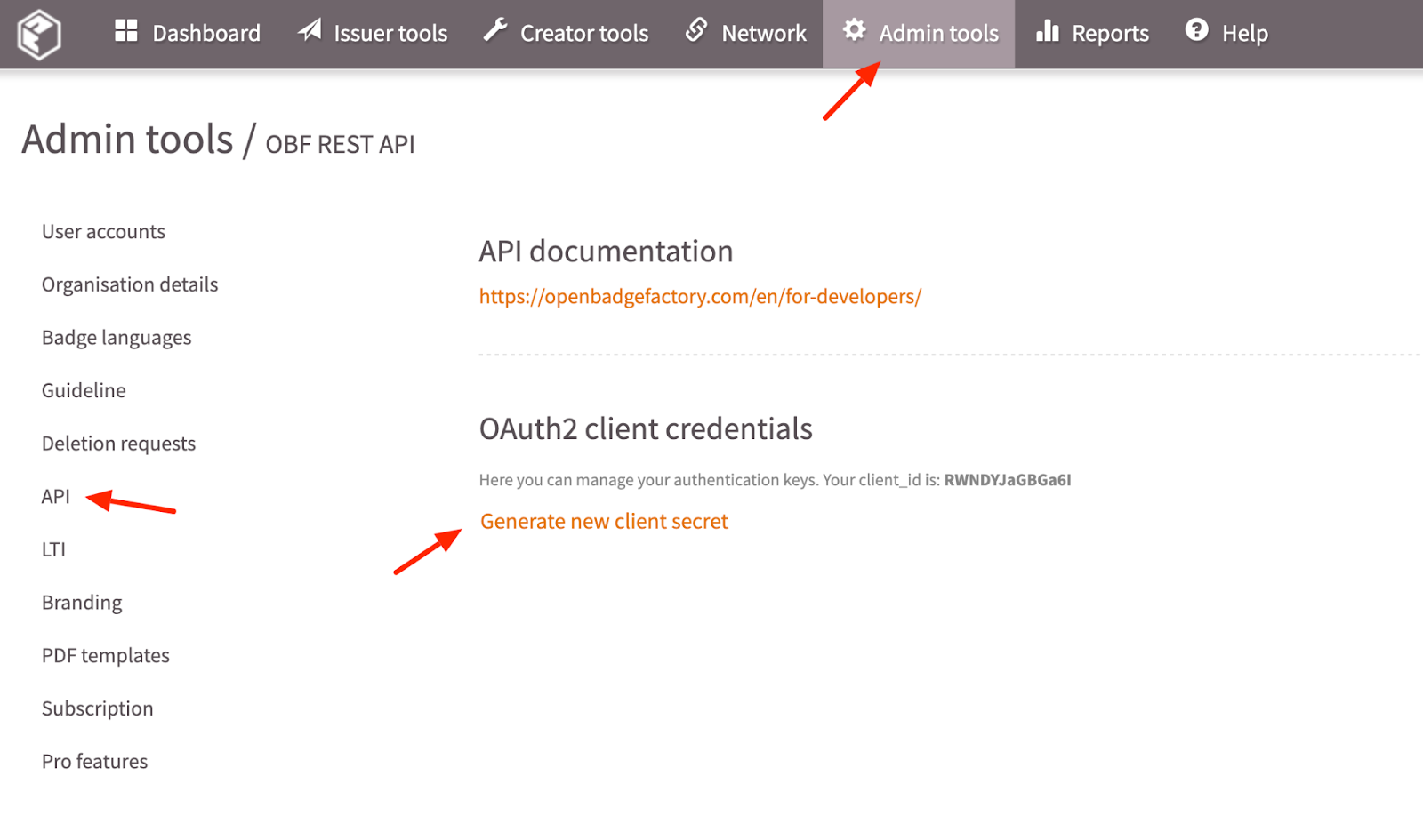
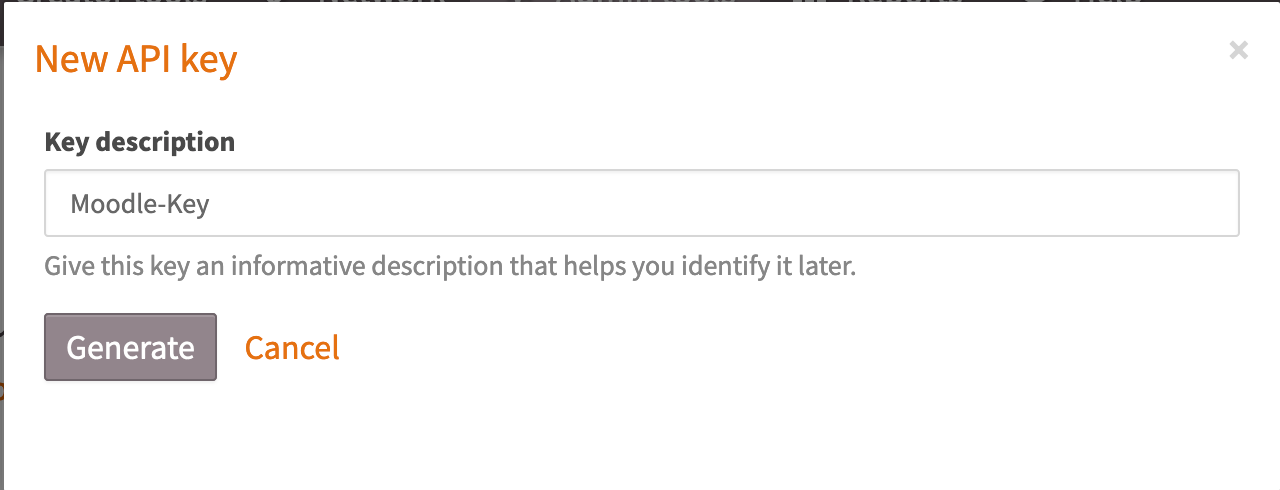
You must first generate your key, click Generate new client secret and set a description for your new key:
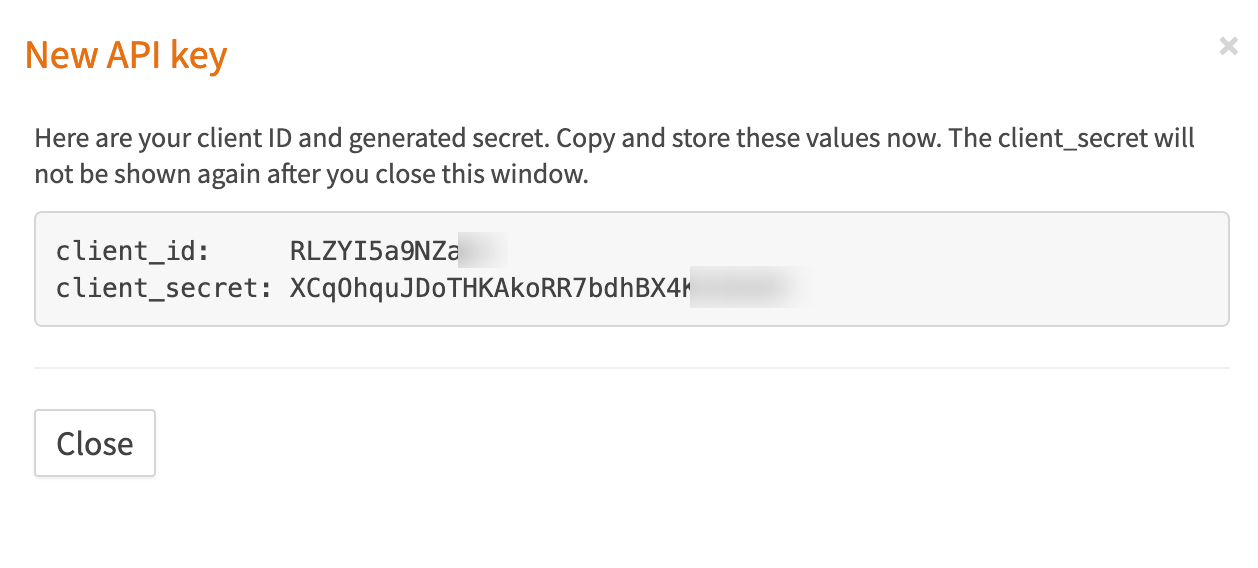
Click Generate and copy the generated client_id and client_secret:
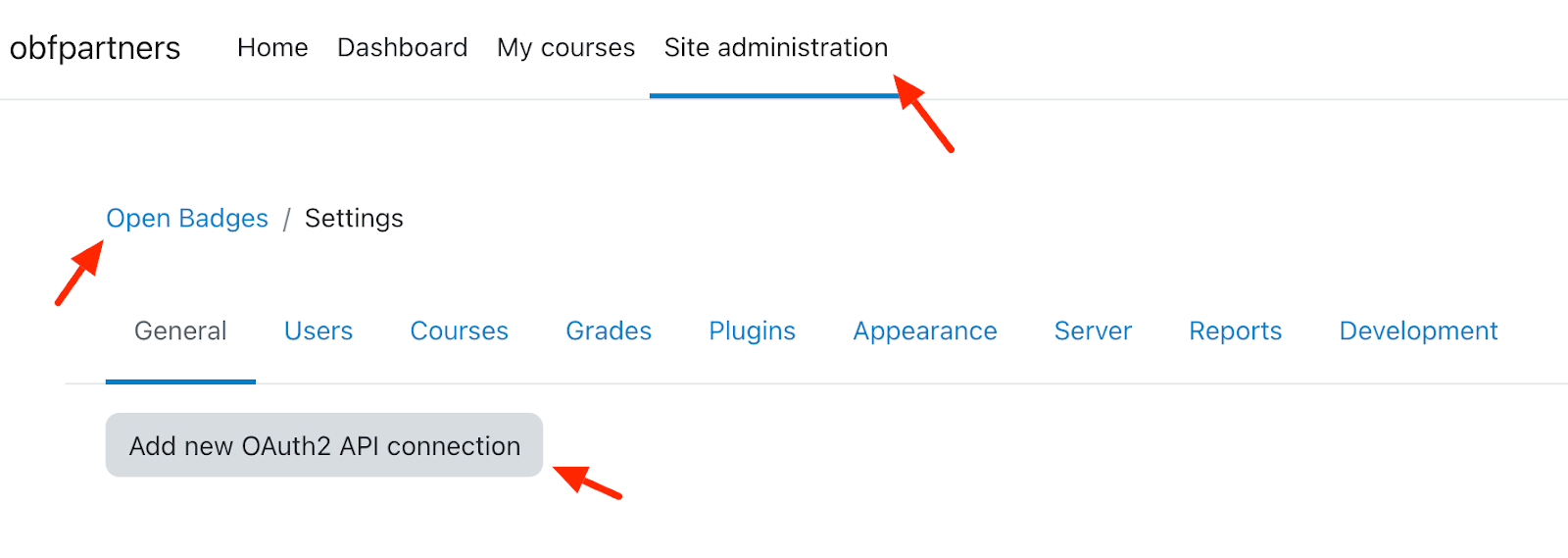
Log into Moodle as a Site Administrator and add the API key you copied from OBF to Site administration →
Open Badges → Settings and click Add new OAuth2 API connection
Paste your client_id and client_secret, set roles authorised to issue badges and click Add new client :
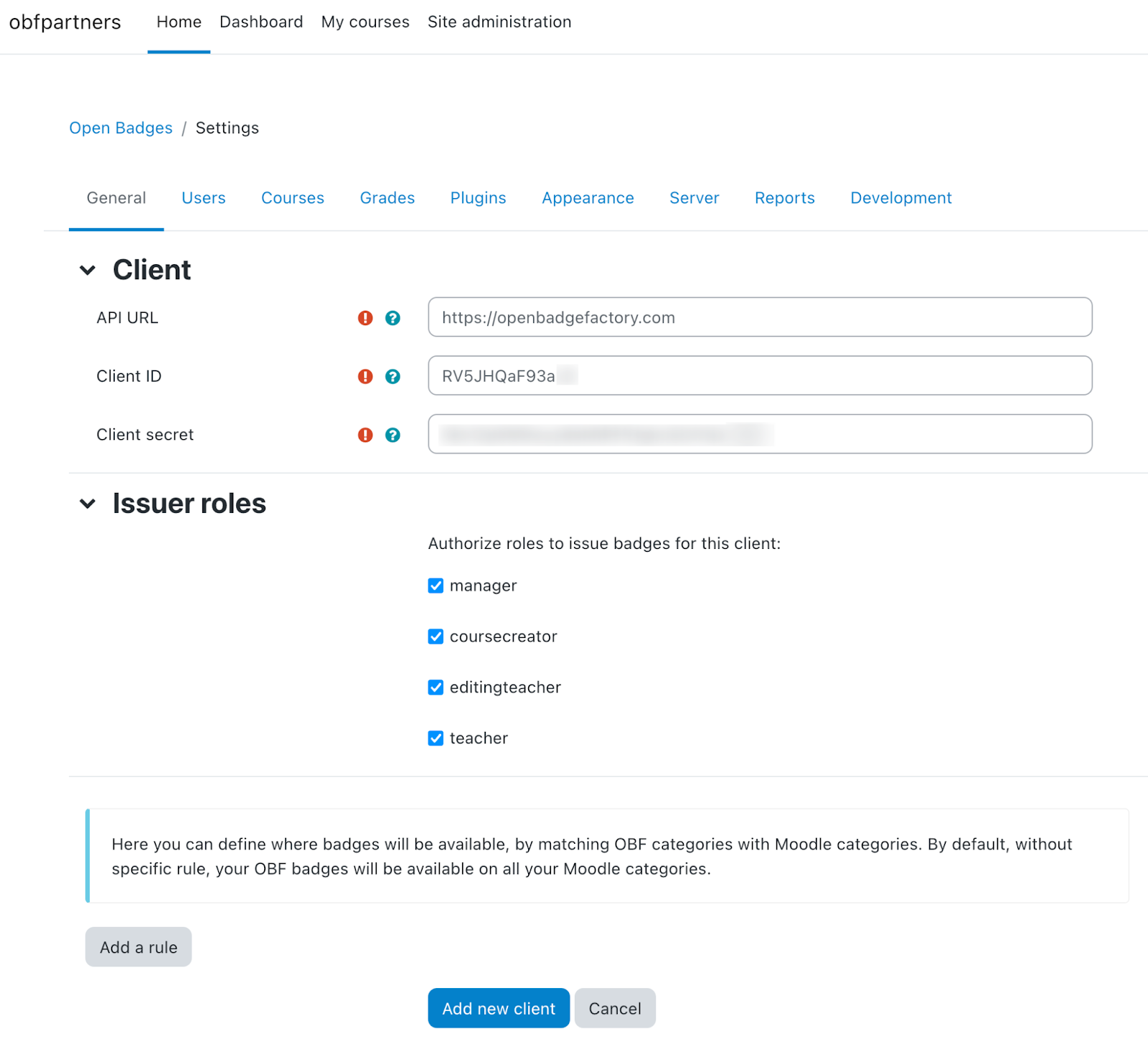
Congrats! Your OBF account is now connected to your Moodle!
Note that you can set several clients here, connect multiple OBF to this Moodle (see video).
2.3. Set badge permissions
For each Oauth2 client, you can set specific badge permissions on Moodle categories (link OBF categories
with Moodle categories).
For instance, you have classified some badges in OBF, into a “SDGs” category:
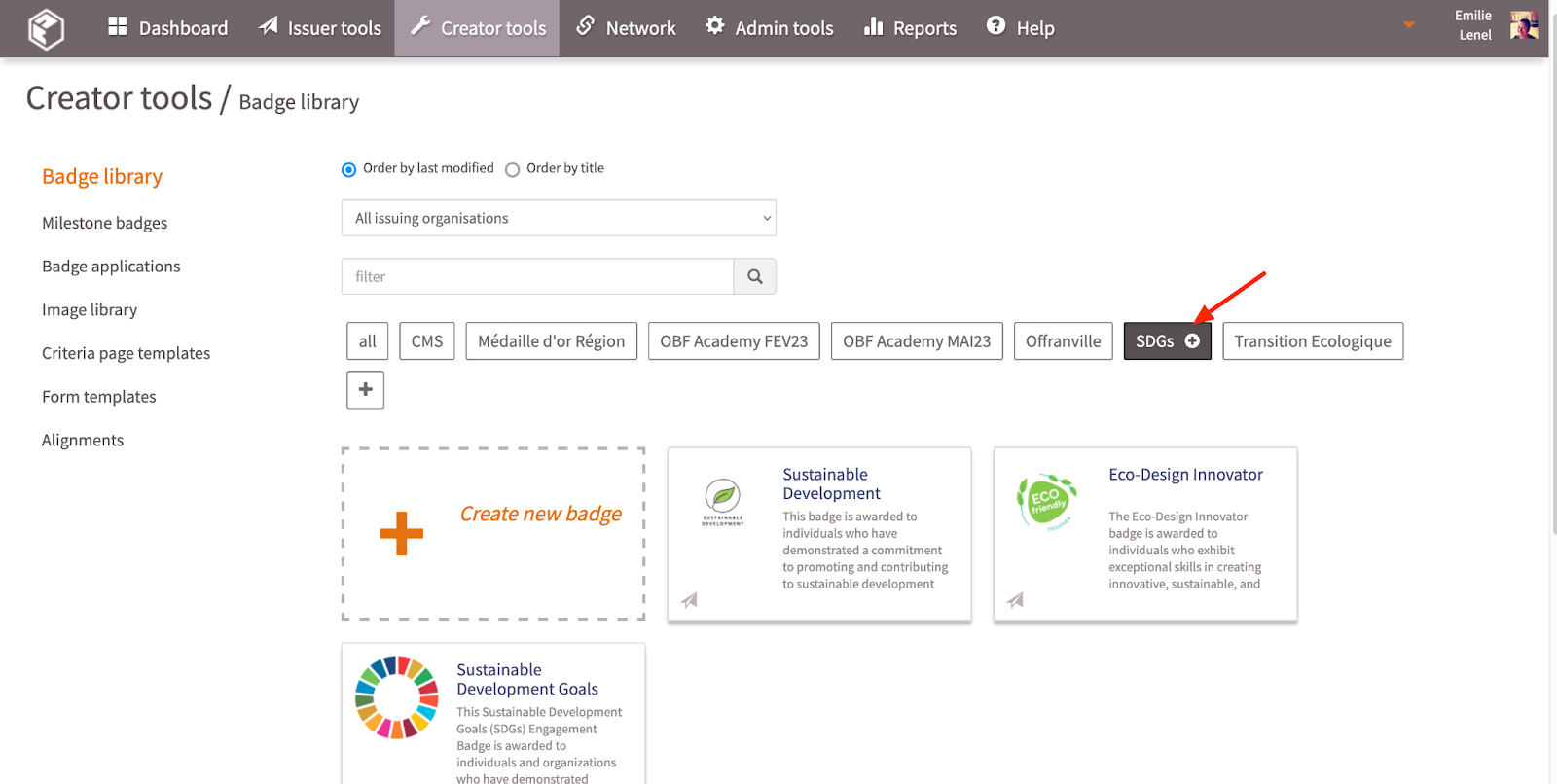
And you want to make those badges available into the related SDGs course category in Moodle.
You can add a specific rule. Edit your client and click the Add a rule button:
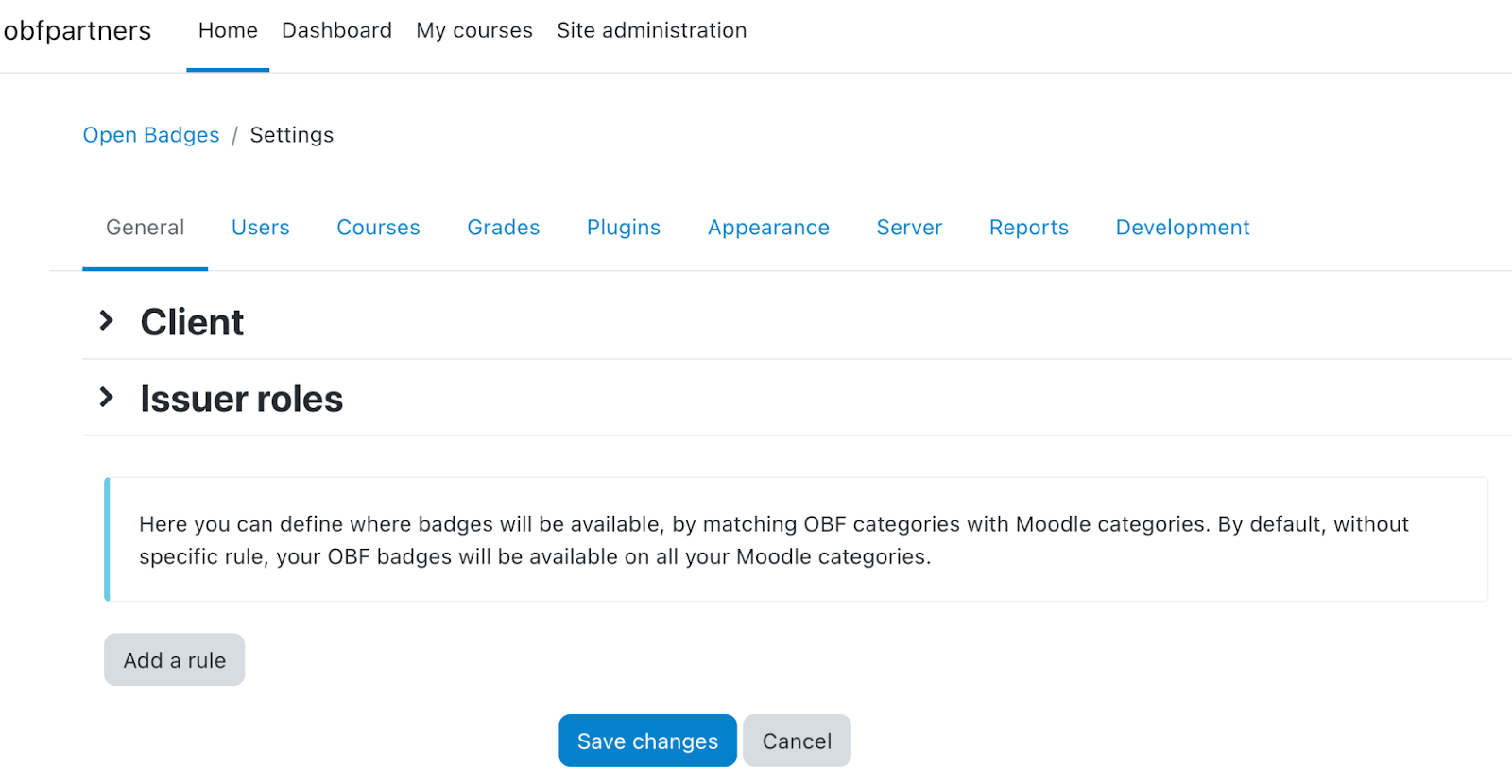
Then choose your Moodle category.ies, and match with your OBF category.ies:
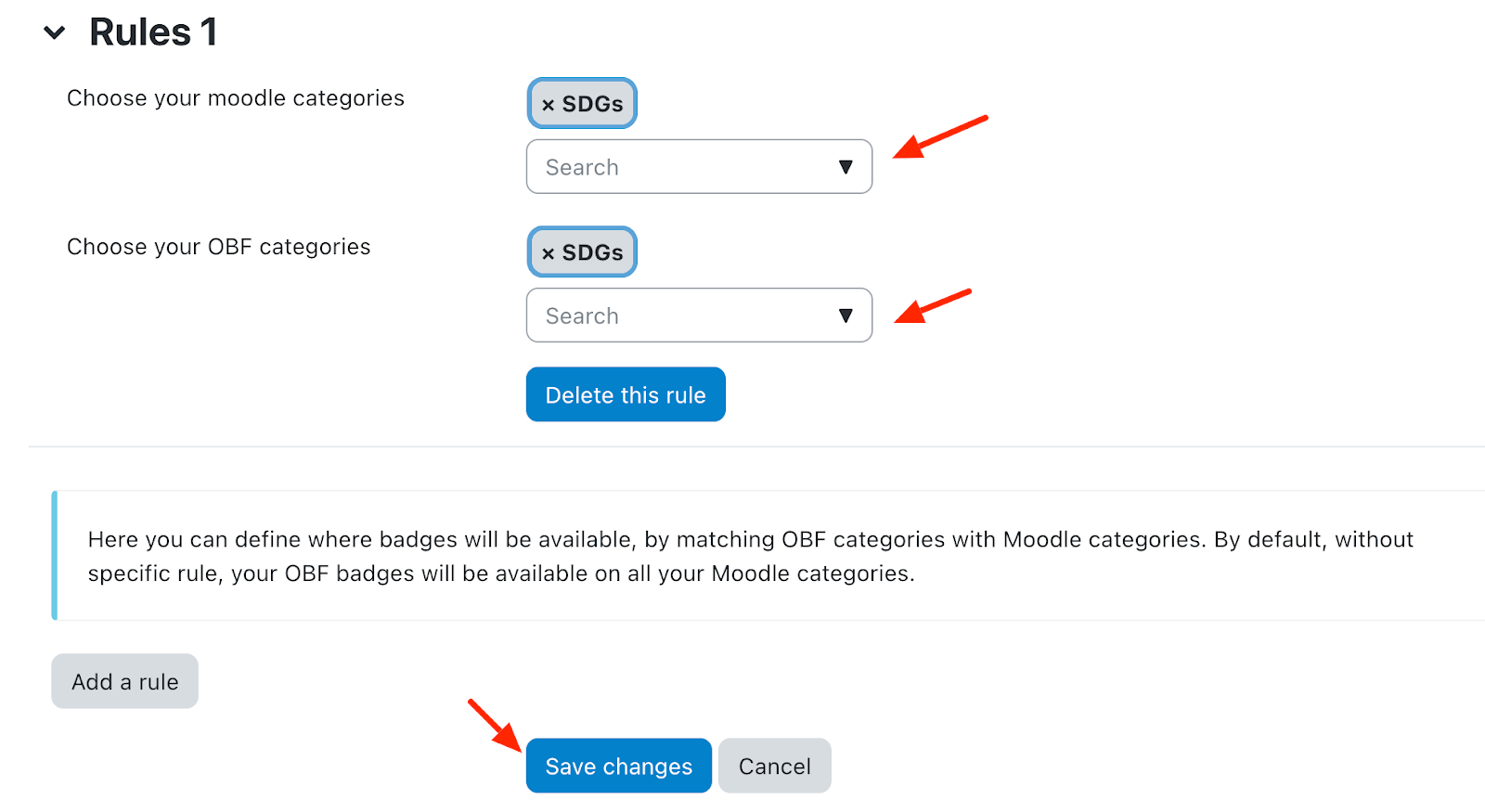
Repeat those steps to add a new rule.
Important:
- A specific rule will be applied to all related Moodle child course categories.
- Without any specific rules, your OBF badges will be available on all your Moodle categories.
2.4. Multi-client badge visibility
Badge visibility depends on whether rules are defined for clients.
If rules are set for any existing client, then new clients added later will not see all badges by default. In this case, badges must be explicitly made visible through rules.
If no clients have any rules configured, then all clients see all badges by default.
When the first organisation and its first client are created, they will always see all badges, because there are no existing clients and no rules yet.
2.5. Other advanced settings
You can configure advanced settings:
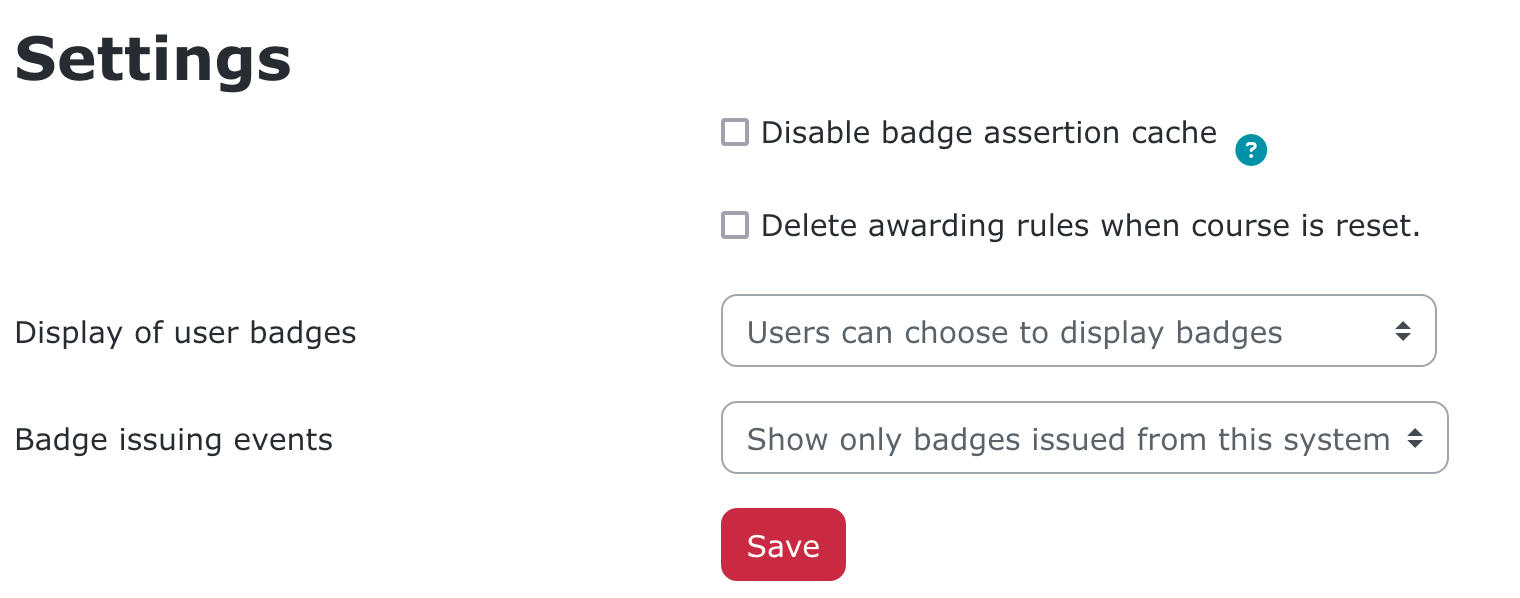
- Disable badge assertion cache: badges on profile will not be cached, they’ll appear on profile
without delay. Note that this could affect the profile page loading performance. - Delete awarding rules when course is reset: for each course you’ll reset, all badges associated rules
will be removed - Display of user badges: you can define if:
- Badges are displayed by default on profile pages
- Badges are not displayed on profile pages
- Users can decide if they want to display their badges on profile page
- Badge issuing events: you can specify if all badges events issued with OBF are displayed in the
Awarding history, or only events related to your Moodle installation.
2.6. Exporting Moodle badges
If Moodle’s own badges are found in the system, they can be exported to OBF. The exported badges are
visible to everyone using the API (e.g. users in Moodle). Additionally, it is recommended that Moodle’s own
badge system is disabled to avoid multiple badge views.
To export your Moodle badges to OBF, go to Site administration → Open Badges → Export settings
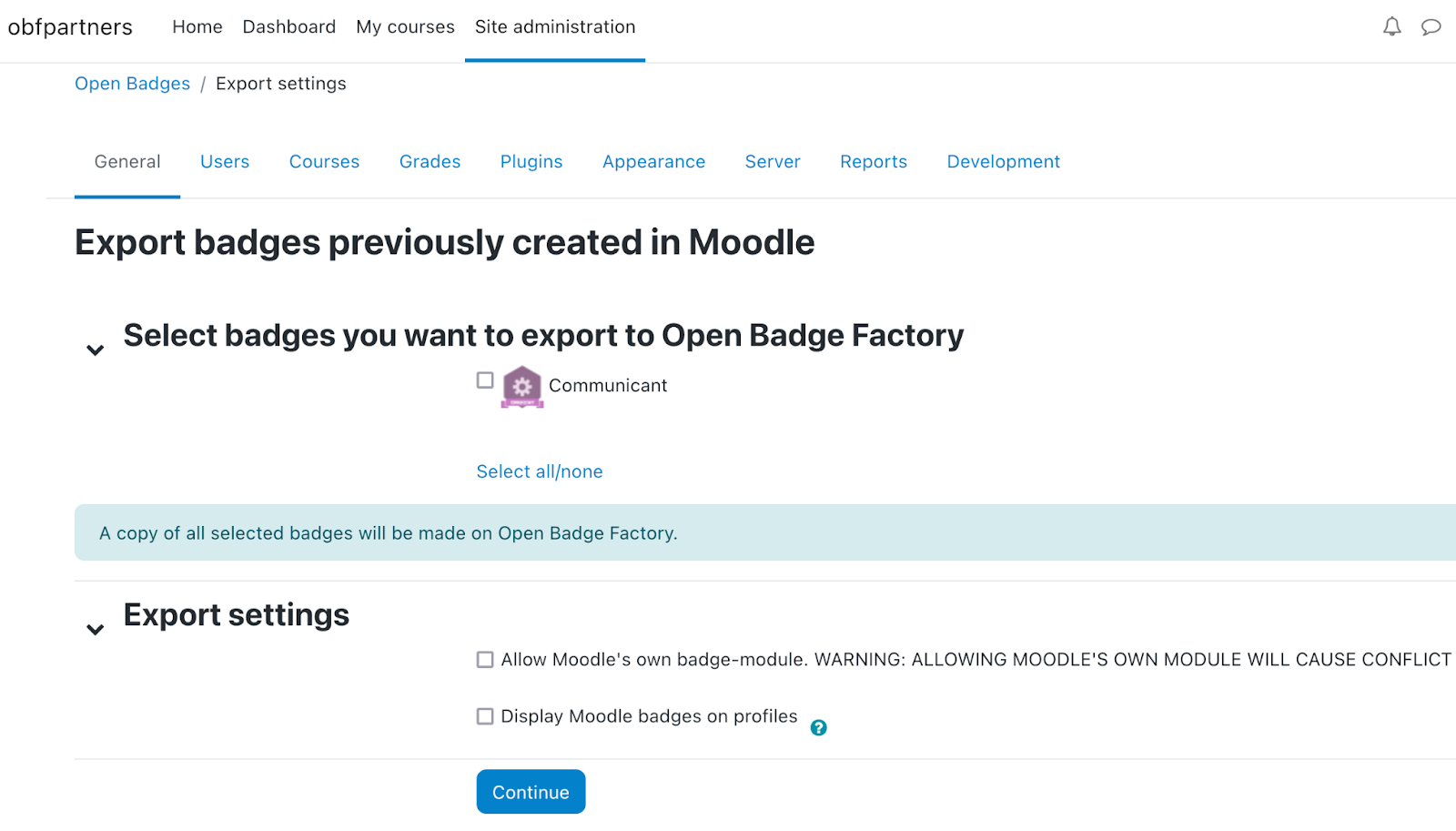
Select the Moodle badges you want to export to Open Badge Factory. You can also disable Moodle’s
badges module and/or disable the displaying of Moodle badges on profiles.
2.7. Badge list
Now the badges from OBF are visible in Site administration → Open Badges → Badge list
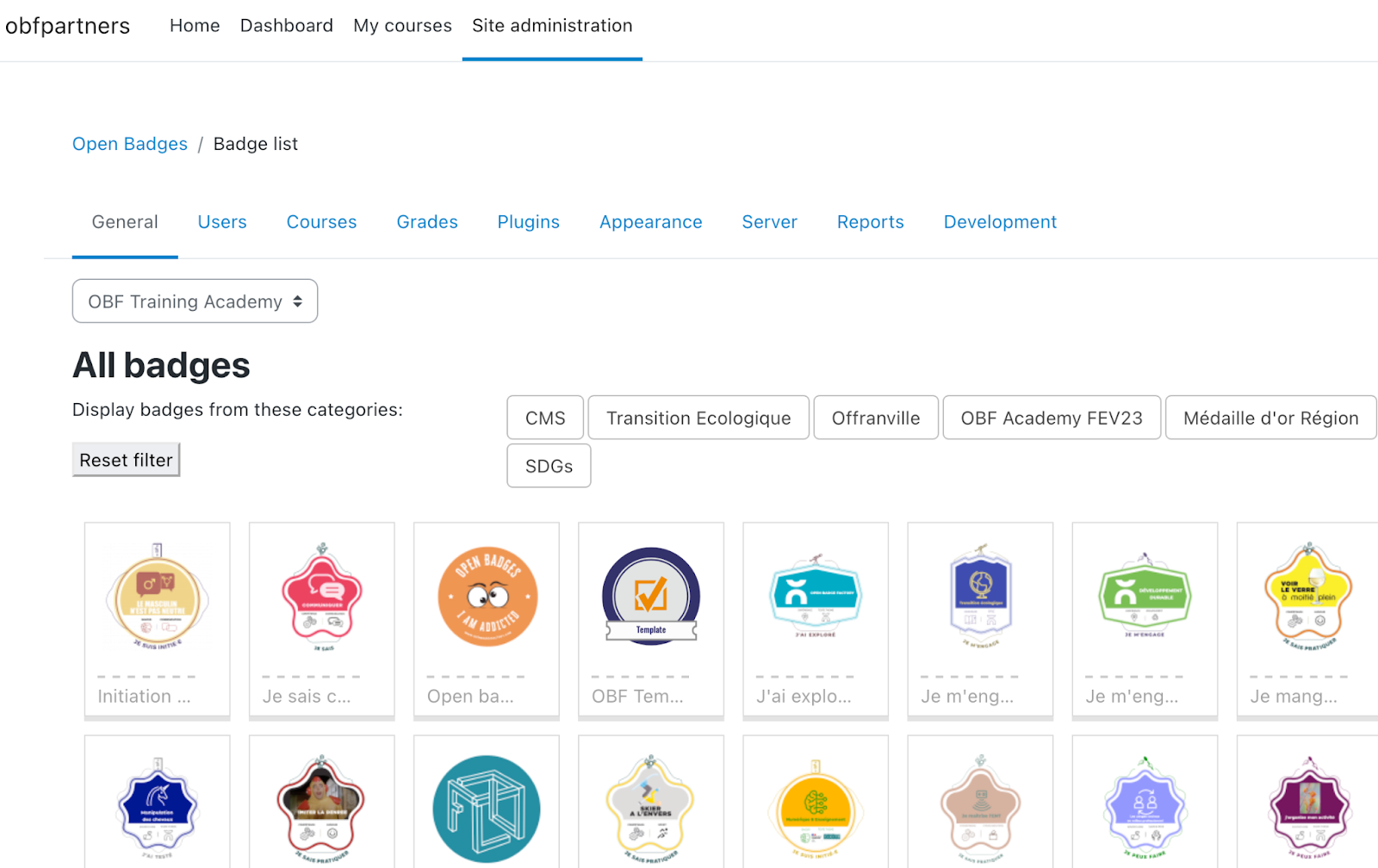
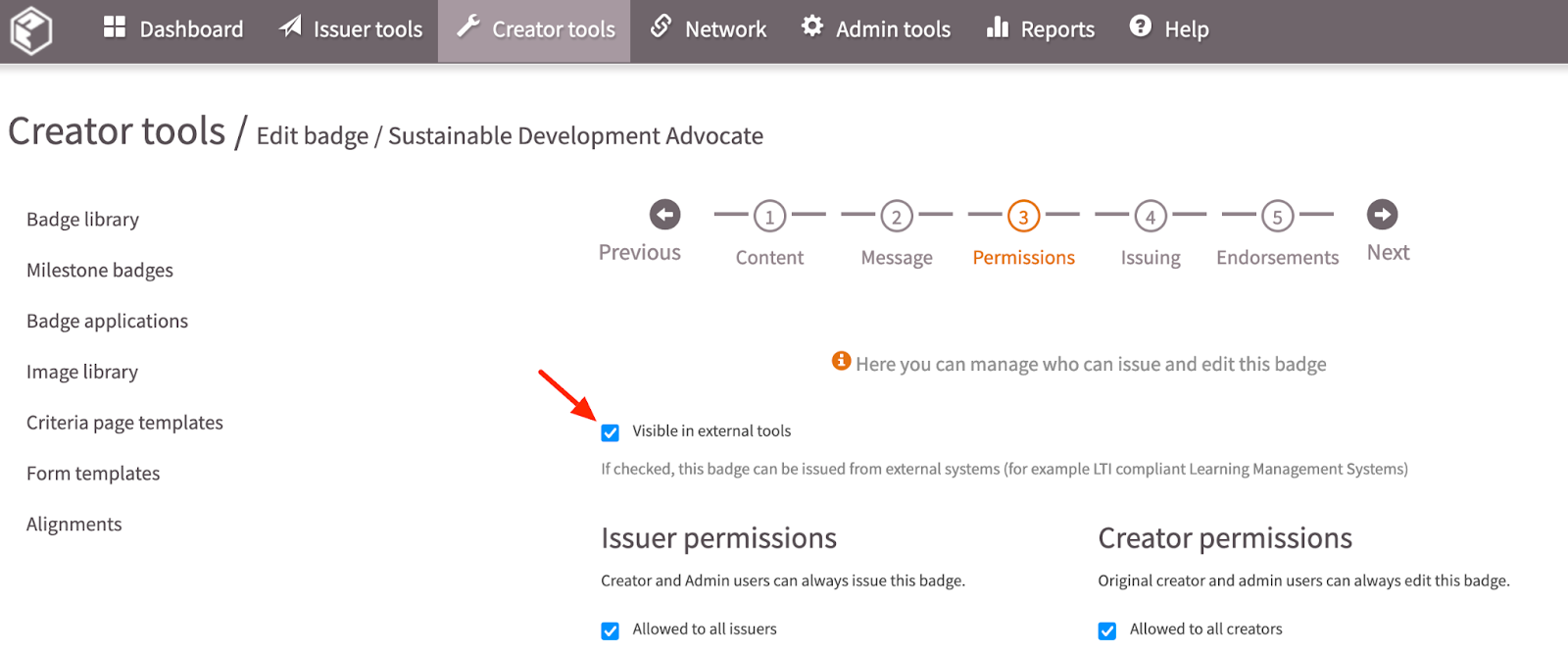
Tip: badges can be excluded from this view, by unchecking the box “Visible in external tools” from your
badge permissions in OBF > Creator tools > select your badge > Permissions:
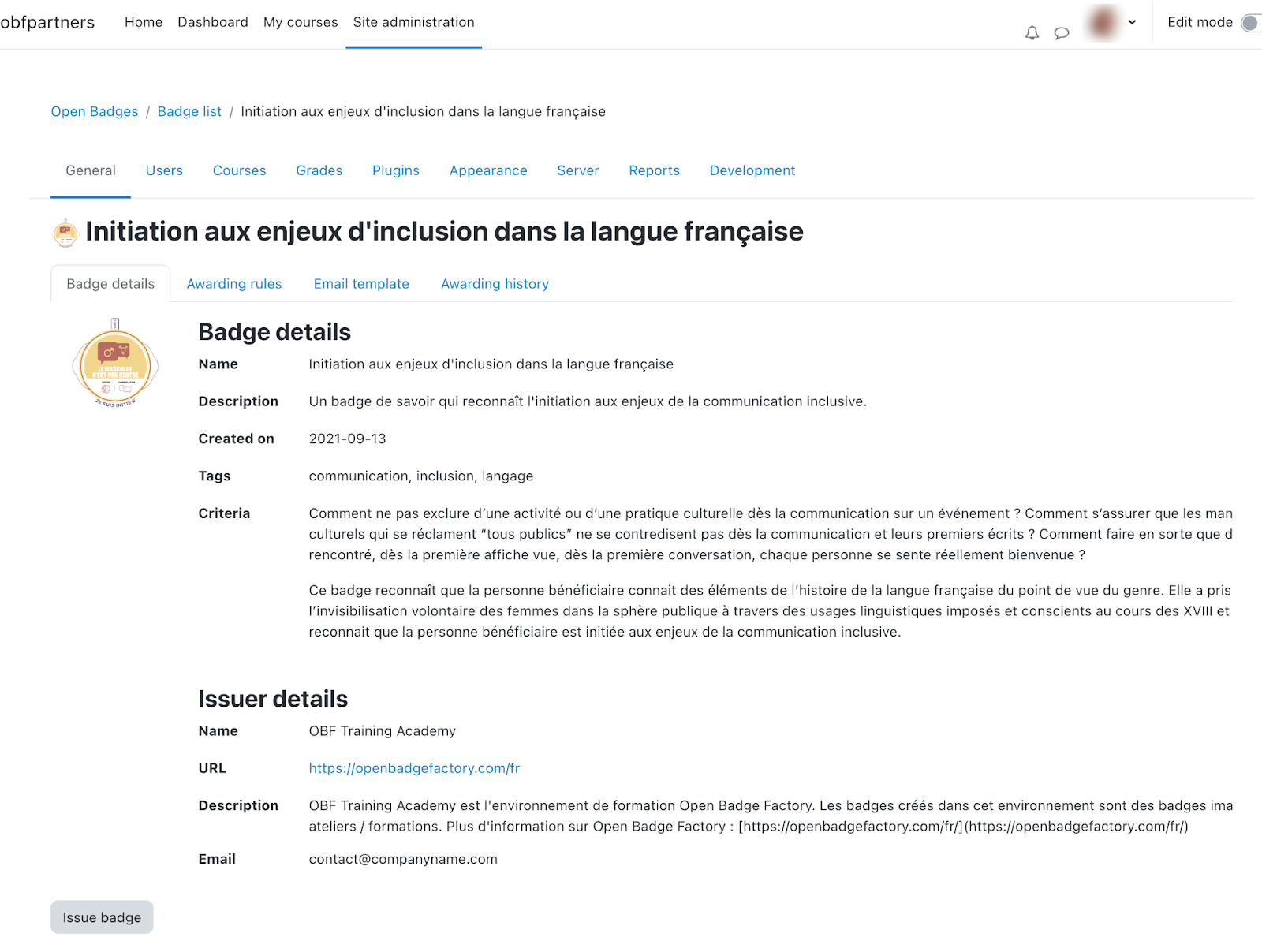
By clicking the badge you can view its details, issue the badge to users, add awarding rules. You can also,
edit the email template used when issuing the badge, and access the awarding history:
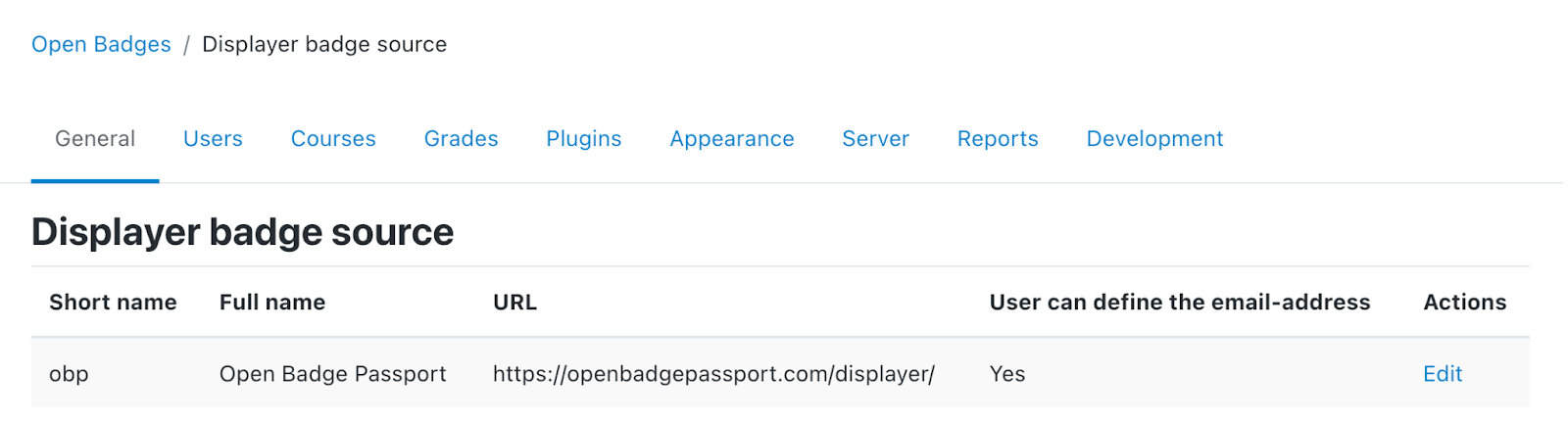
2.8. Set displayer badge source
By default, the Open Badge Passport displayer will be configured:
3. Usage
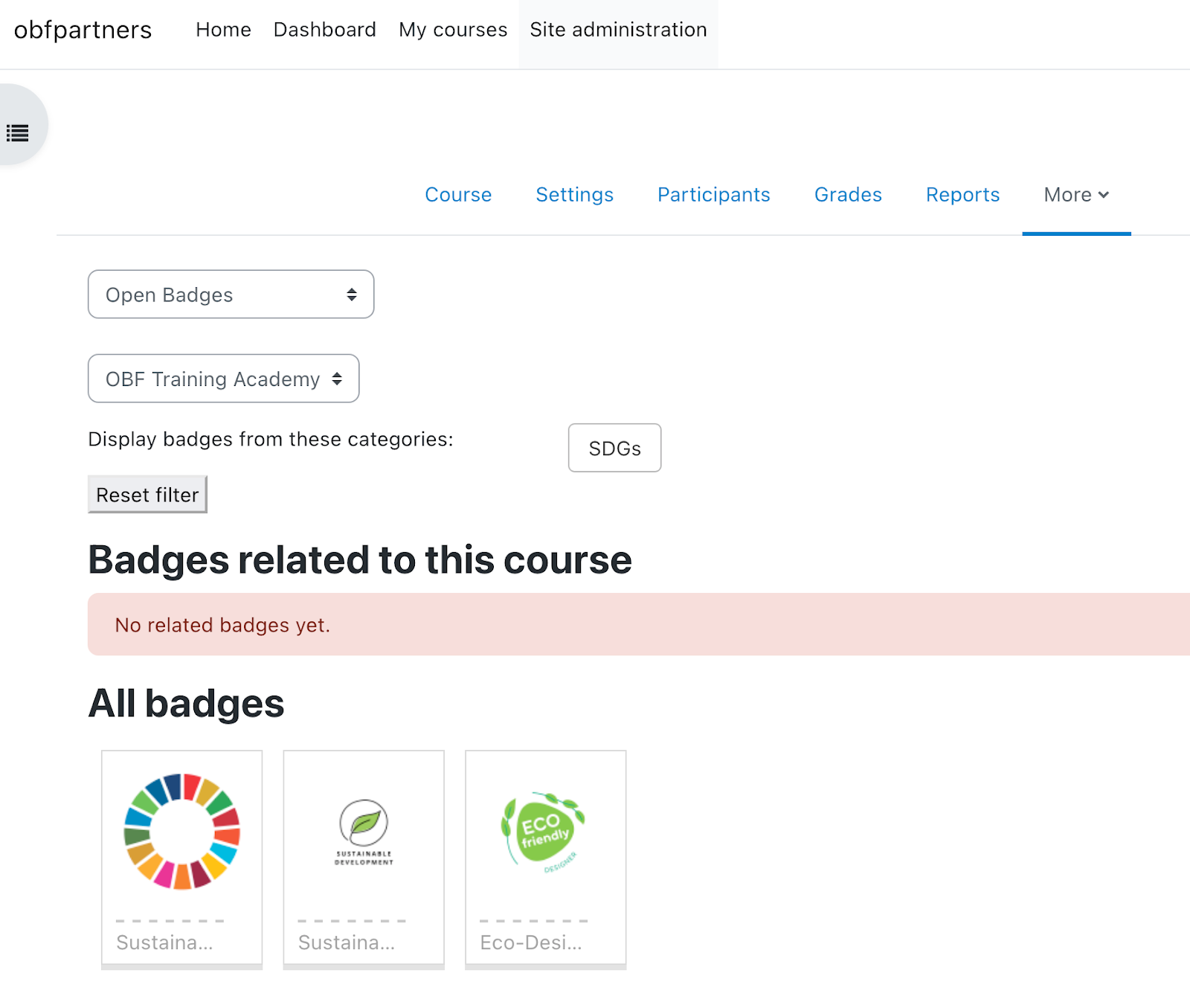
If you are in a teacher role in Moodle you can manage the badges of your course by first choosing a course
(where you are in a teacher role) and going to Course → Course administration → Open badges. Here you
can see a similar view which can be seen in site administration, see badges that are related to course and
create new awarding rules.
By clicking the badge you can see the badge details. In a course badge view a teacher can edit only those
awarding rules which apply to the chosen course. Note that if a badge has awarding rules which apply to
several courses, including the chosen course, an awarding rule cannot be added or edited within the chosen
course. Also, if a badge has been issued at least once according to a certain rule, the rule cannot be edited
anymore.
3.1. Issuing a badge to course participants
NEW! With our plugin version 2.0.0 you can now issue badges from your sub-organisations!
By clicking Issue badge you can issue the selected badge:
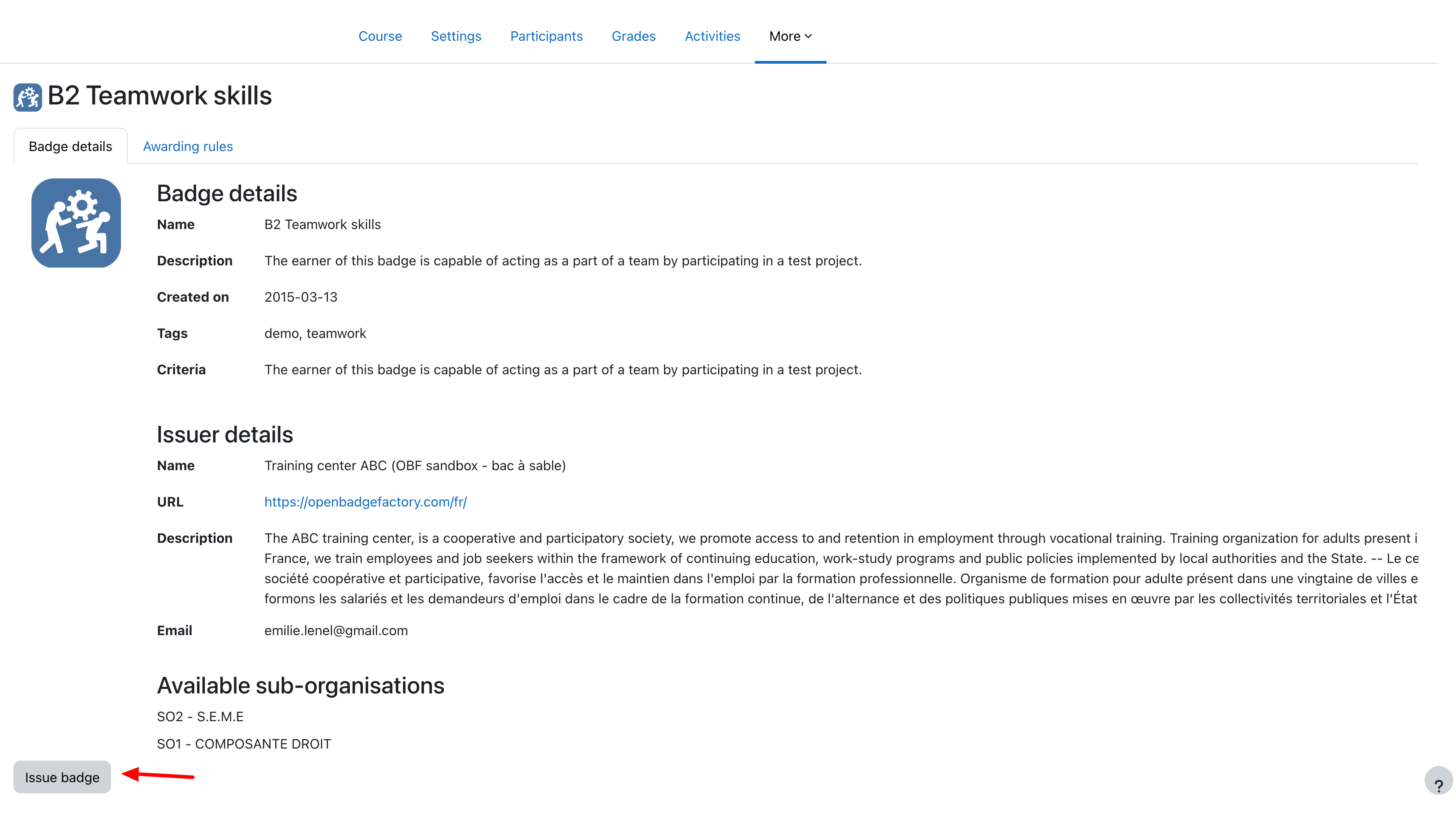
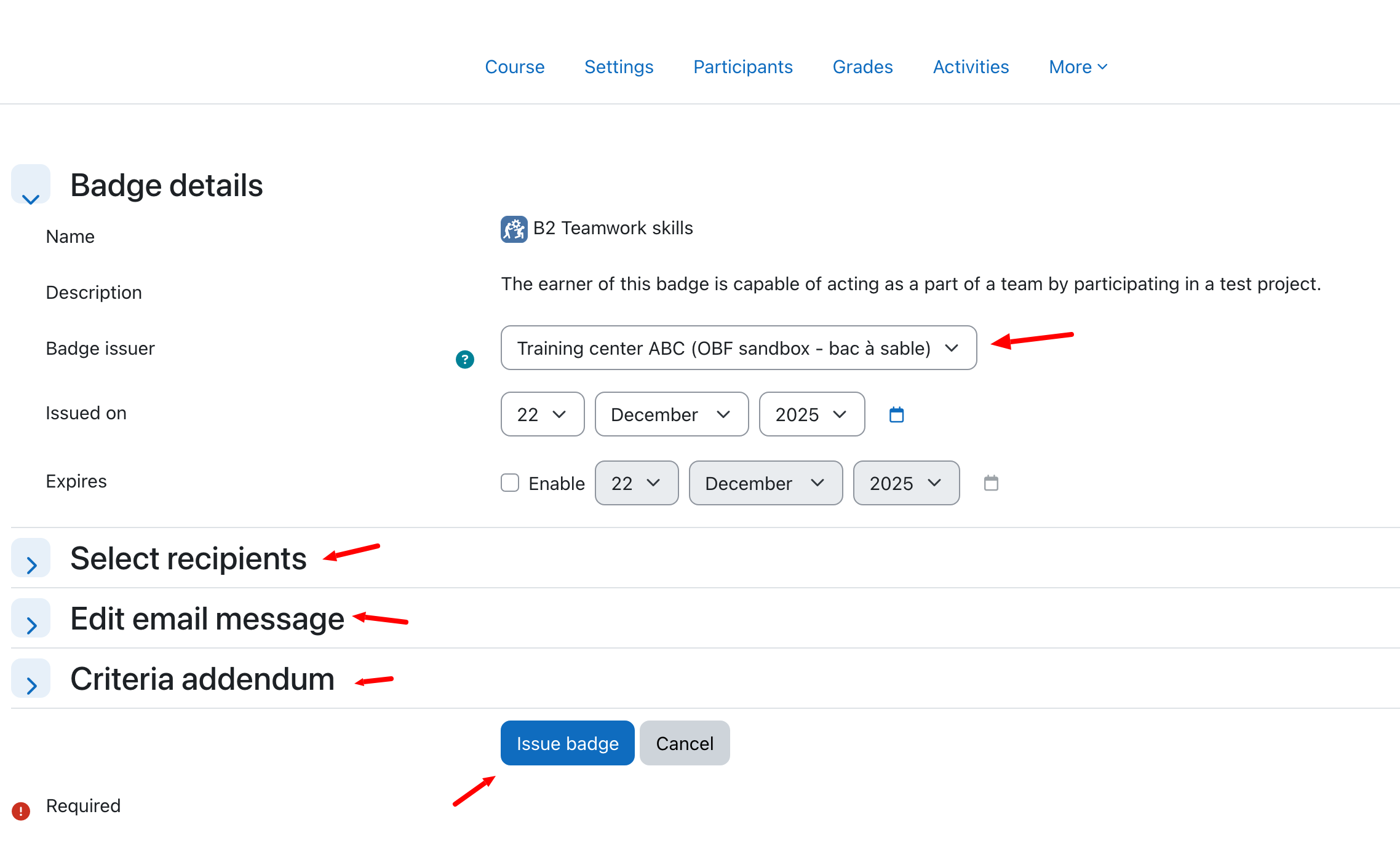
If you're using sub-organisations, you can select the issuing sub-organisation.
You can select recipients out of all the users registered to the course. You can edit the email message which
will be sent to the recipients of the badge and add criteria addendum specific to this course. And click Issue
badge to confirm the badge issuing.
3.2. Create badge awarding rules
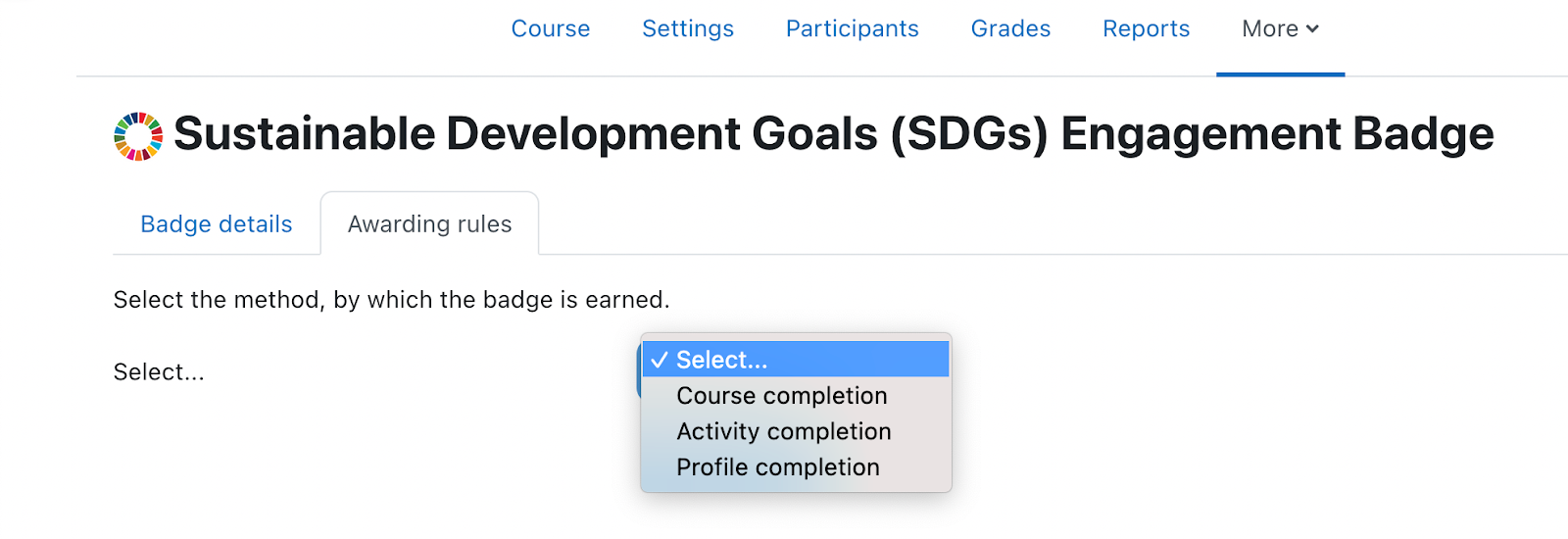
On the Awarding rules tab an administrator can create specific issuing rules:
First choose if you wish to issue based on course completion, activity completion or profile completion.
If the option ”Review rule after saving” is selected, the system checks if there are already completions in the
system that correspond to the awarding rule. If these are found the badge is issued to the users
automatically.
Note! If a badge is issued according to this review, the rule cannot be edited anymore. Make sure the rule is
created correctly. A rule cannot be edited but it can be deleted if needed.

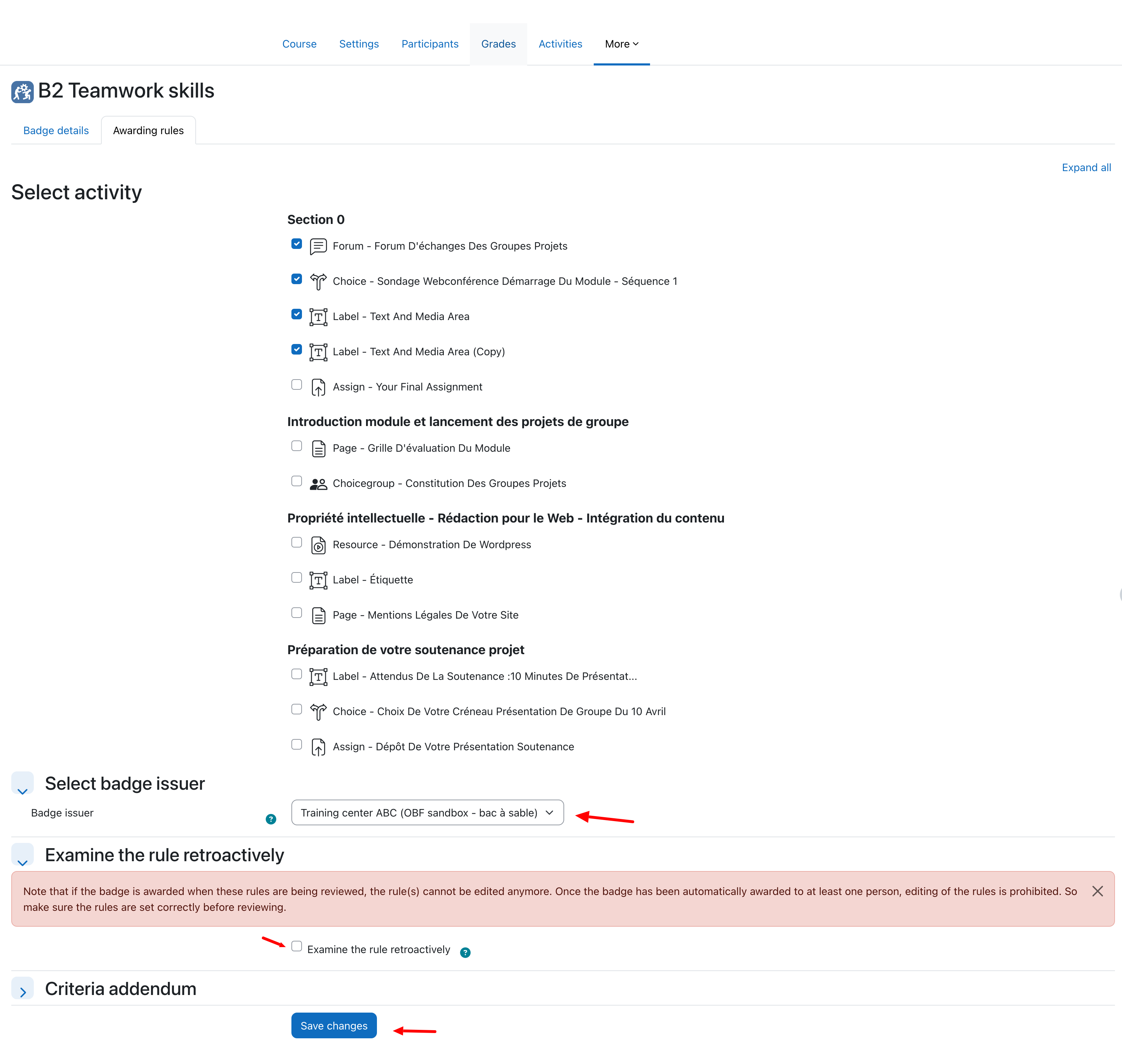
Issuing a badge automatically on activity completion
You can define what activities need to be achieved to get the badge (documentation on activity completion available in Moodle documentation):
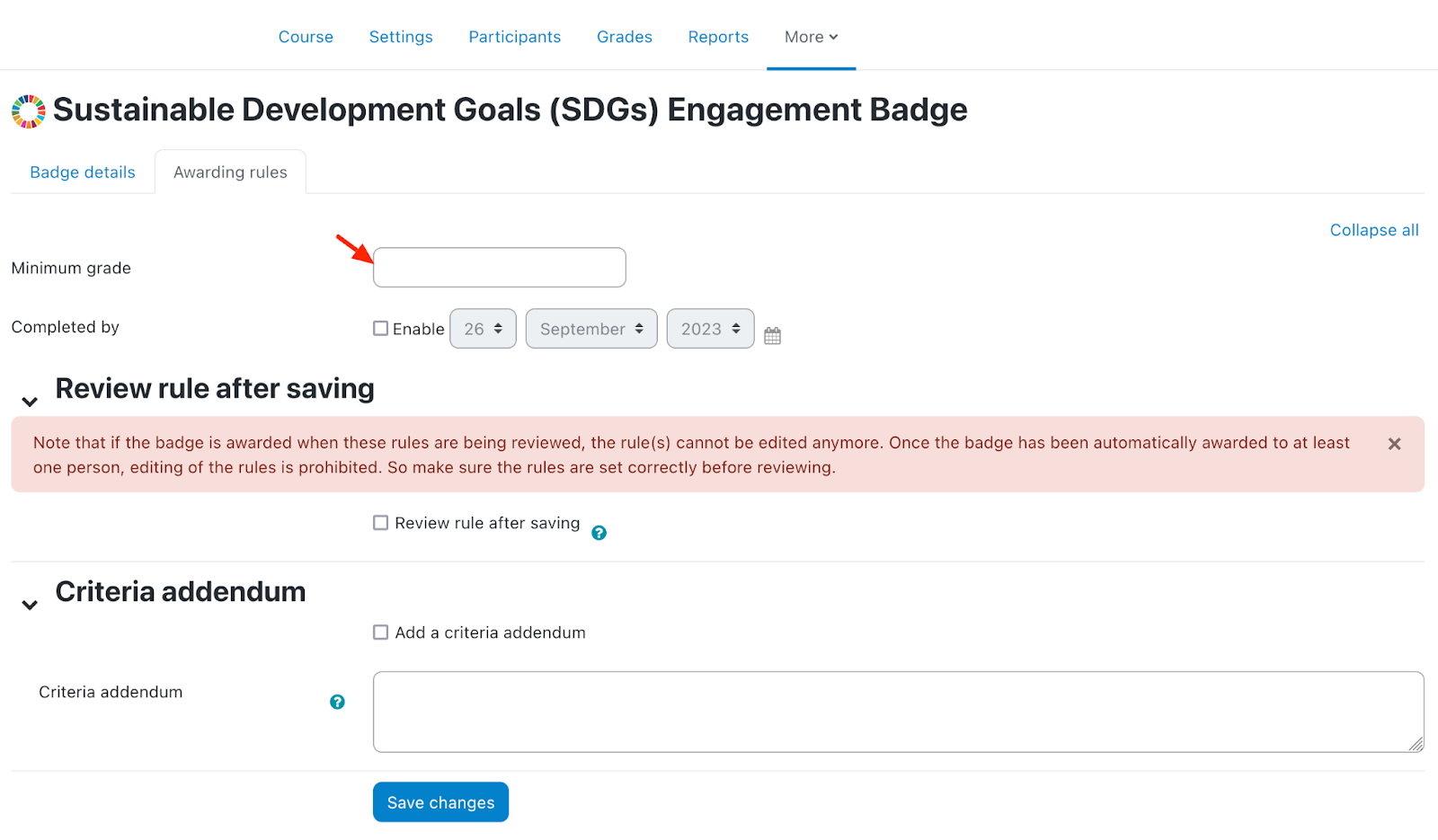
Issuing a badge automatically on course completion
You can define a minimum grade for the selected course and the last possible completion day in order for
the completion to be accepted according to the rule:
Issuing a badge automatically on profile completion
You can also define what user profile fields need to be completed to get the badge:
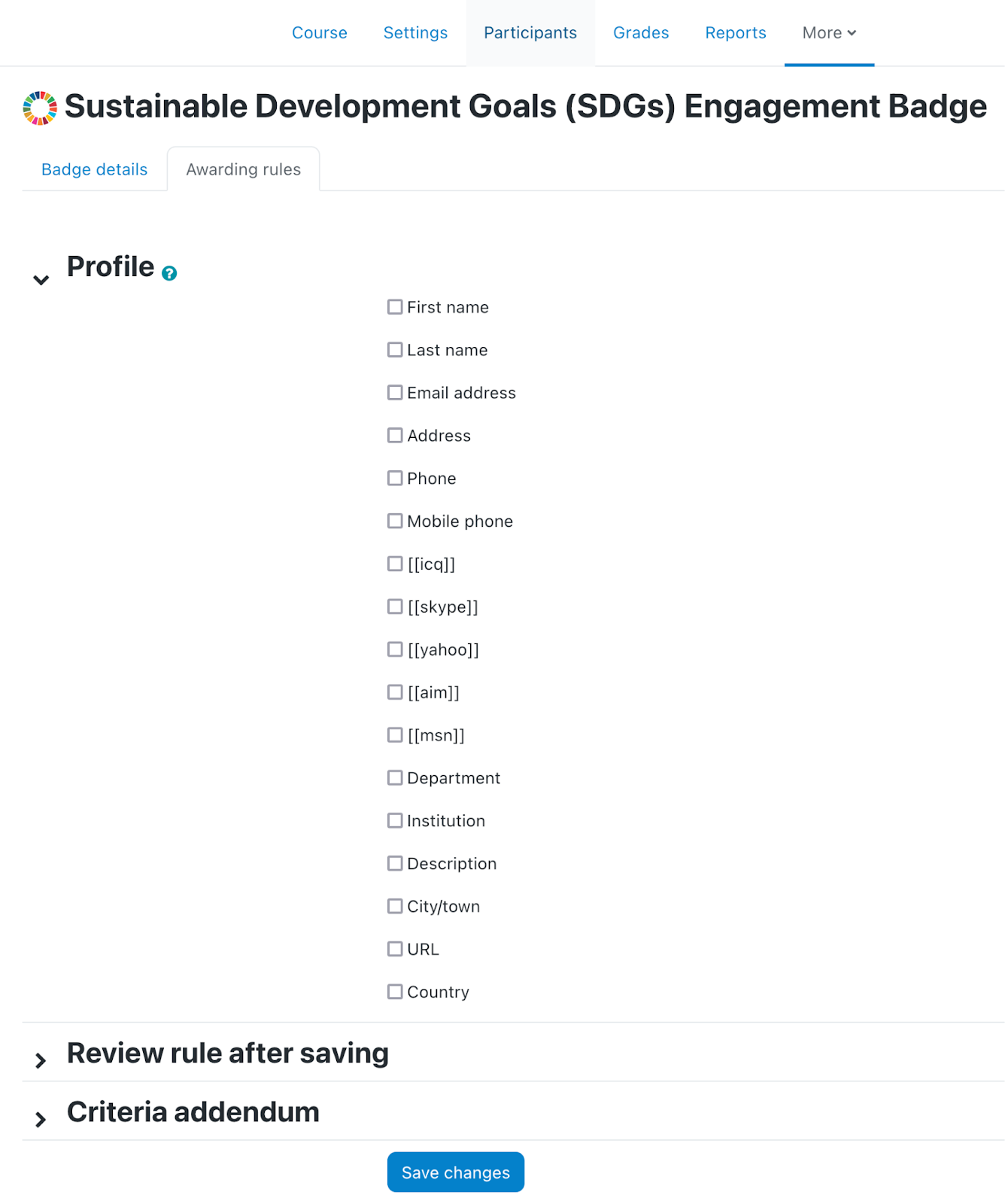
After the rule has been saved it can be seen on the Awarding rules tab in the badge’s details.
3.3. Notifications
Notifications alert teachers, students and other users about events in Moodle. New notifications are
highlighted with a number in the notifications menu at the top of the screen:
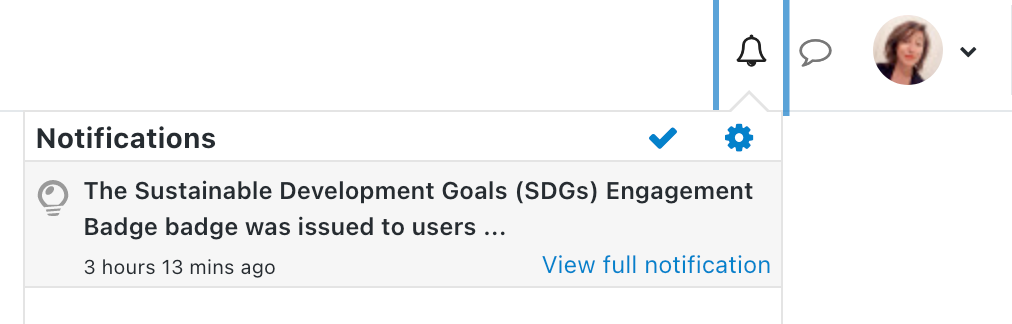
Clicking there displays any new notifications, along with the option to mark all as read, or to go to the
notifications preferences page to change how notifications are received.
From the notifications preferences page, students can enable/disable internal notifications for new issued
badges or revoked badges (no email notifications since emails are sent by Open Badge Factory). And
teachers can be notified when a badge is issued / revoked to students in their course:

3.4. Awarding history
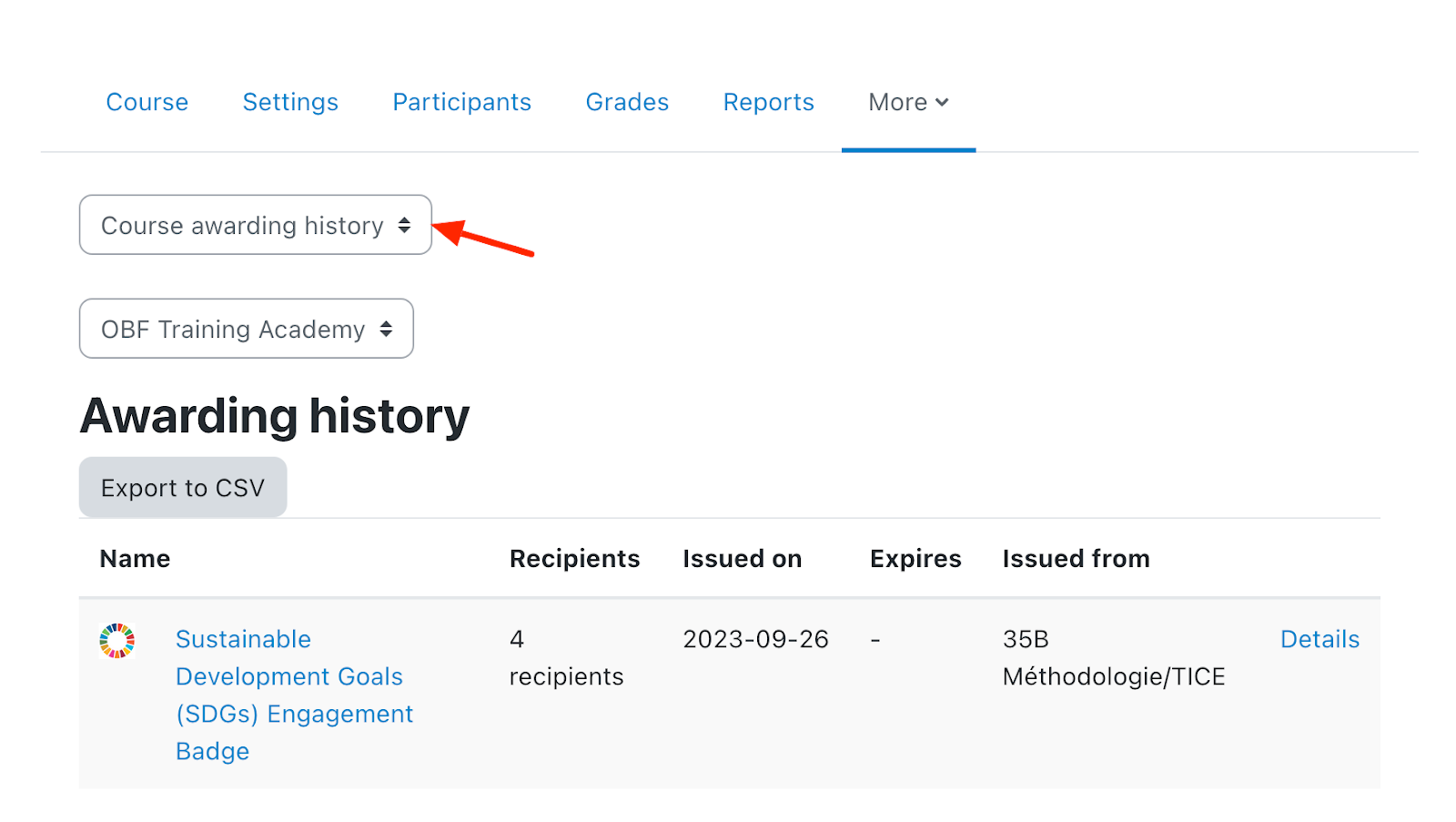
Once the badge has been issued to someone, the issuing event can be seen on the Course awarding
history tab. You can access the issuing details and export your report in a CSV file.
3.5. Revoking a badge
Revoking a badge typically refers to the action of taking away or removing a badge that was previously
awarded to an individual. There can be several reasons for revoking a badge: administrative error,
Misrepresentation, Violation of Terms etc.).
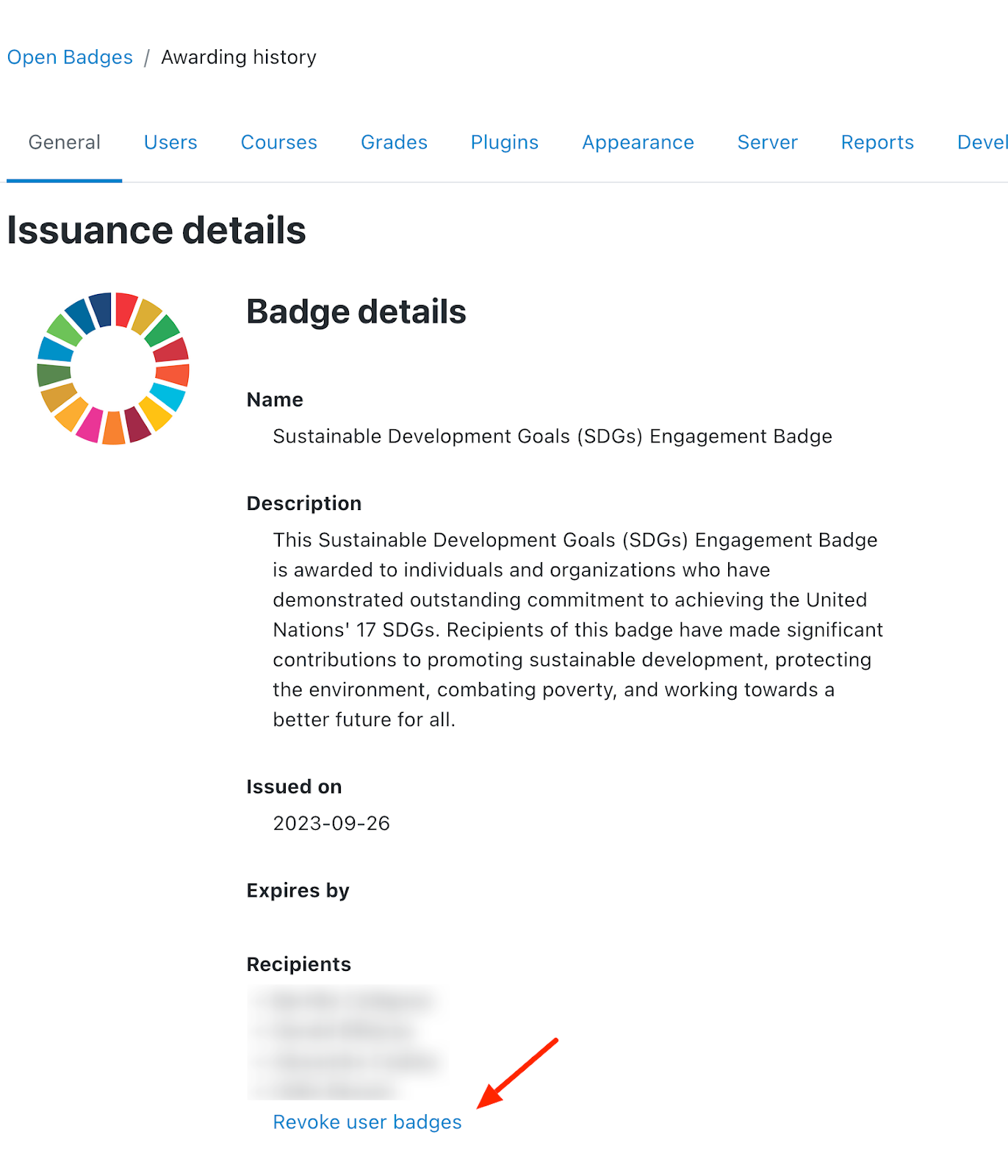
From the awarding history view, click on Revoke user badges.
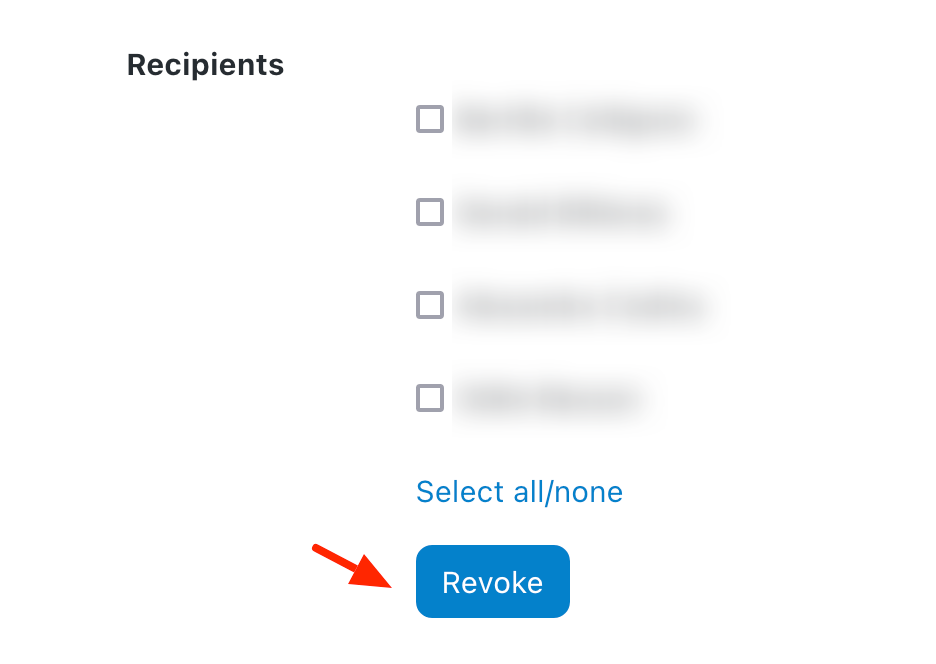
Select the individuals to whom you want to revoke the badge and click Revoke:
4. Displaying badge on user profiles
4.1. OBF badges issued in Moodle
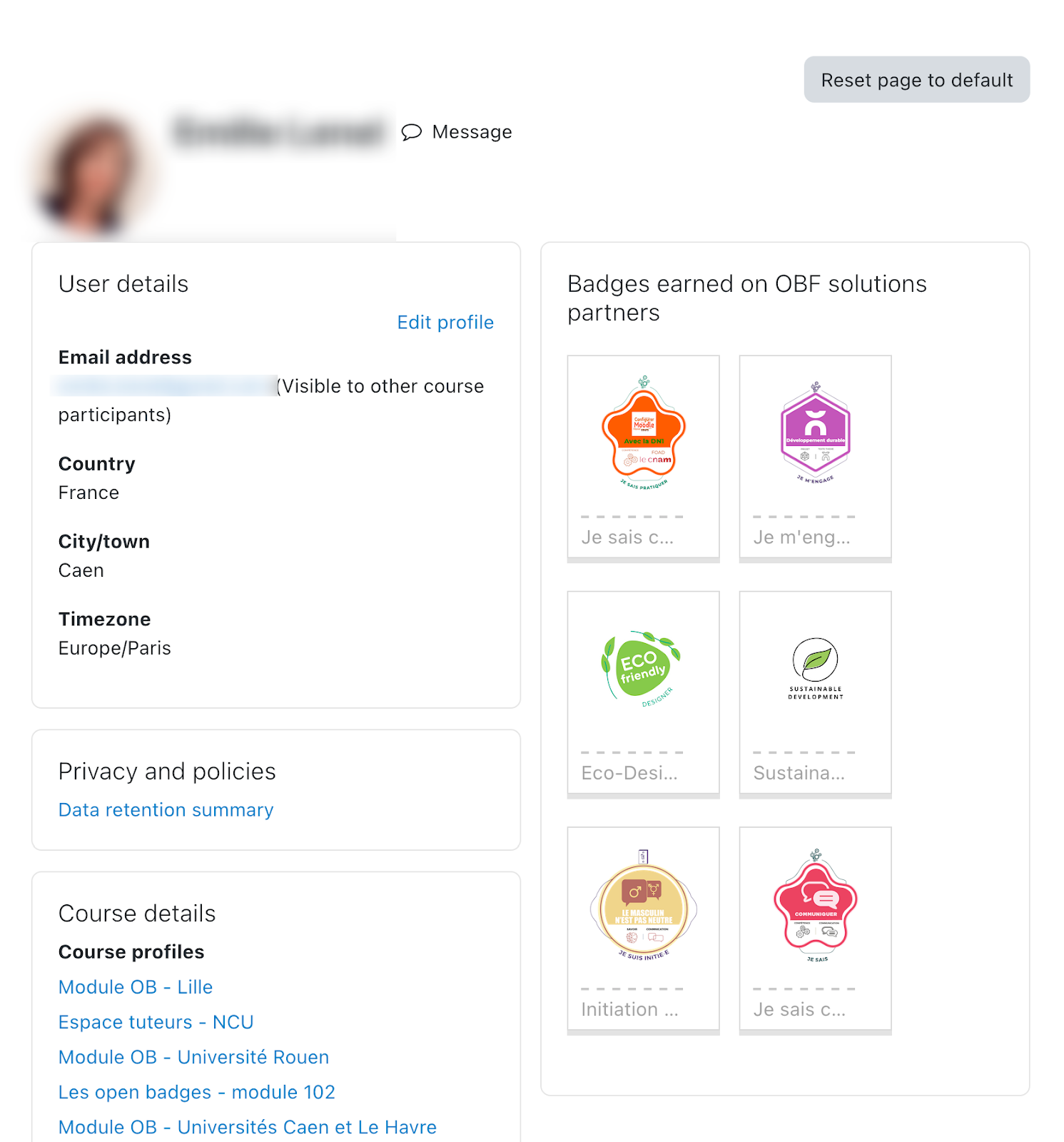
If you allowed badges to be displayed on profile pages (refer to 2.4), then all OBF badges issued in your
Moodle site will be visible on user profile pages:
However, users can decide to hide part of their badges:
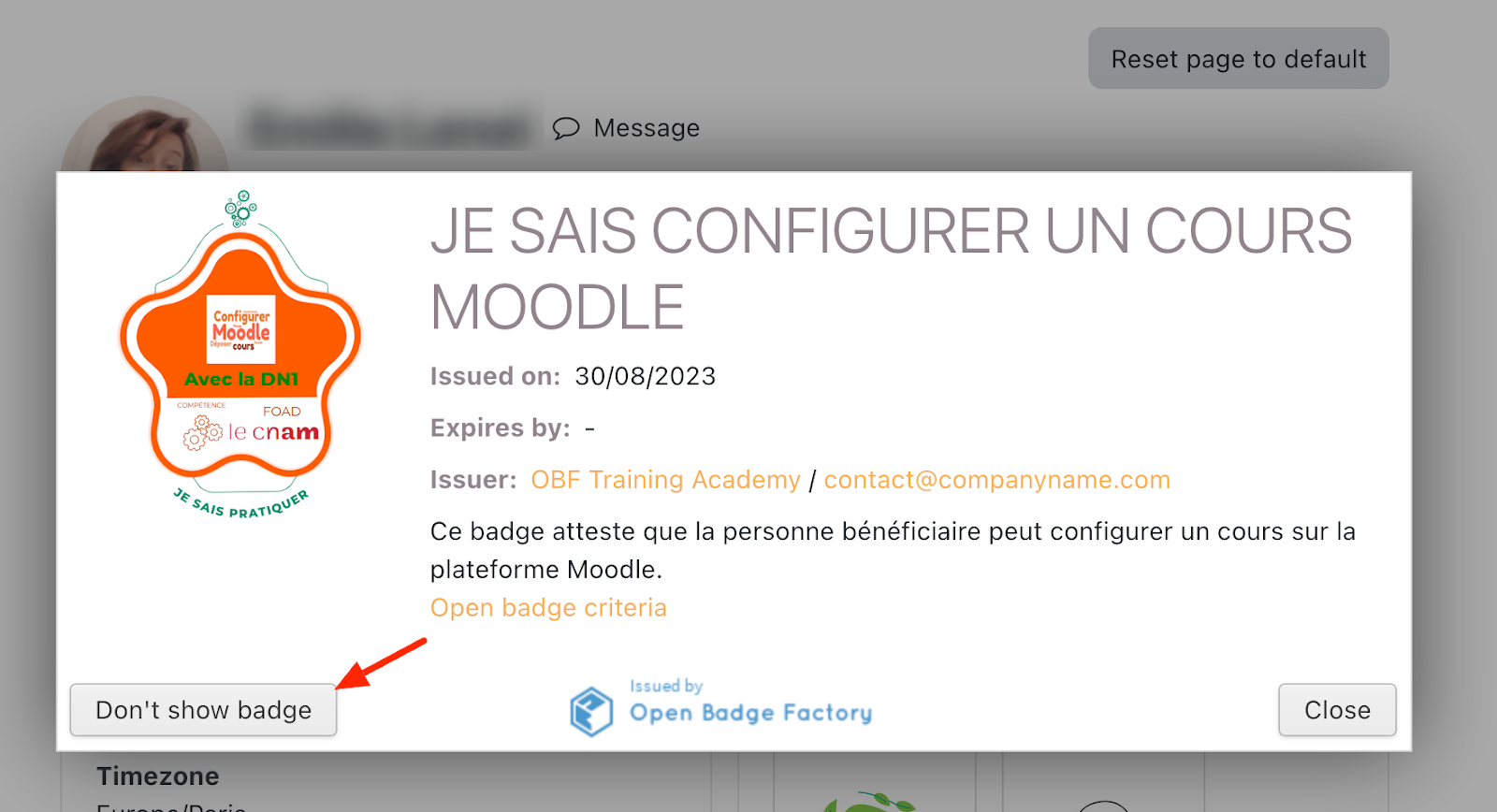
4.2. Open badge passport badges
Open Badge Passport is a free, easy to use service, where users can receive and store their Open Badges
safely and share them with whomever they like and wherever they like.
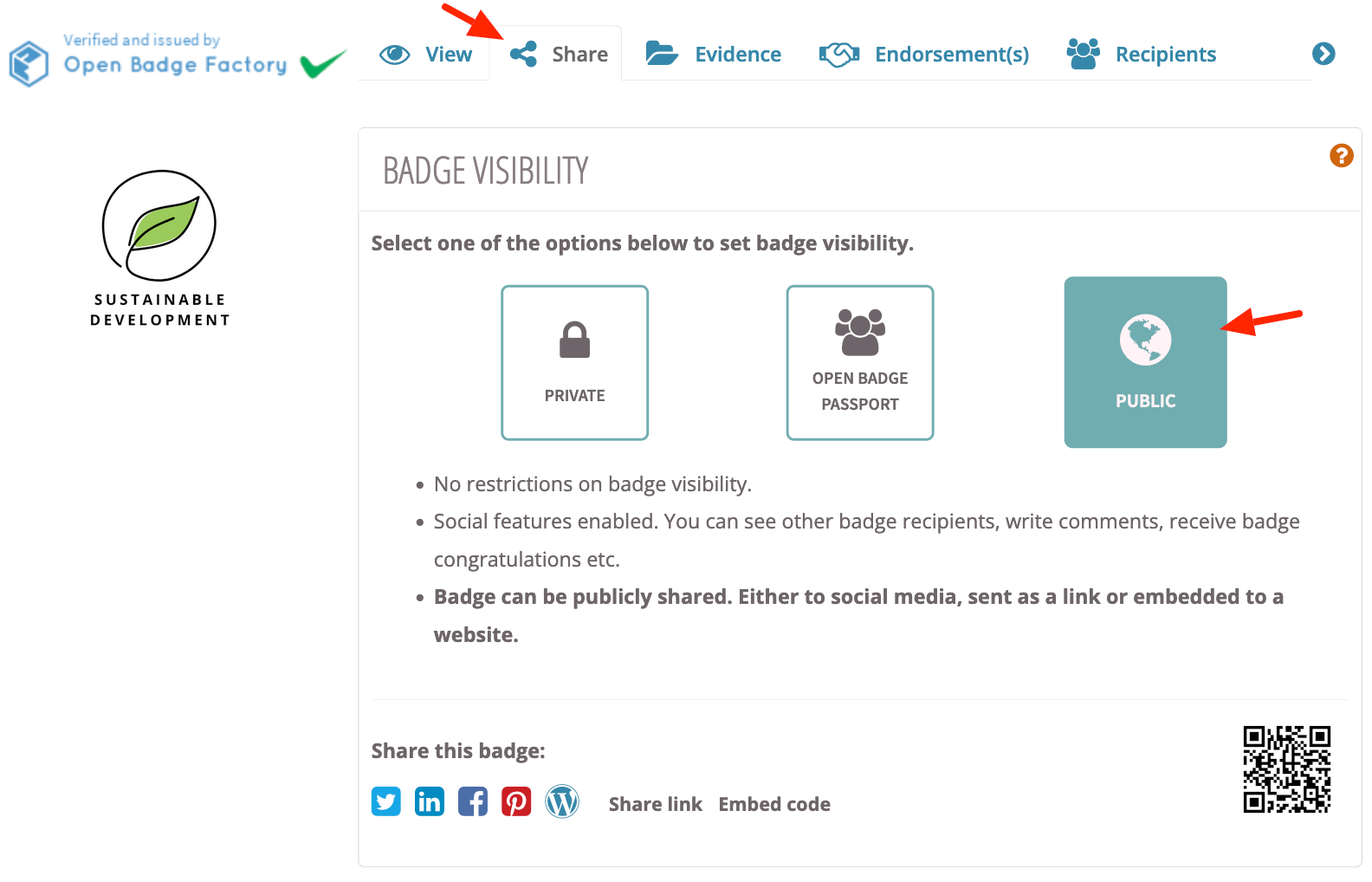
Within Open Badge Passport, users can set their badge visibility as public:
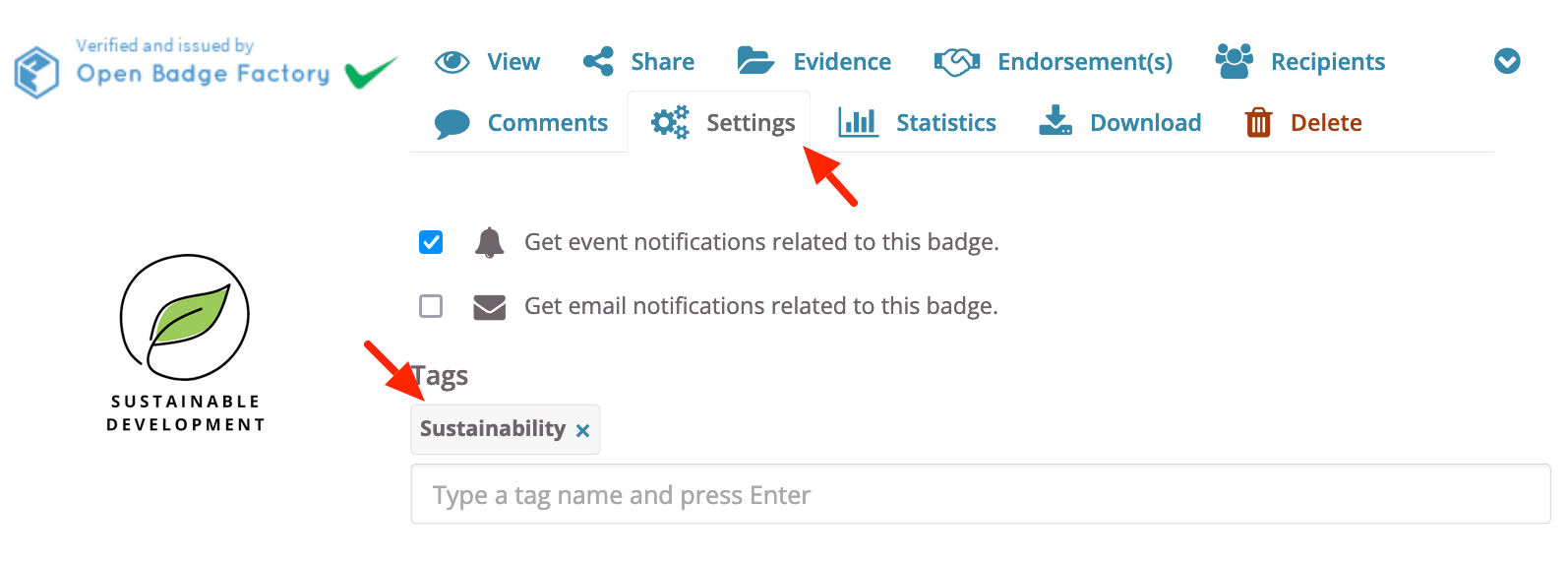
And organise their badges with tags:
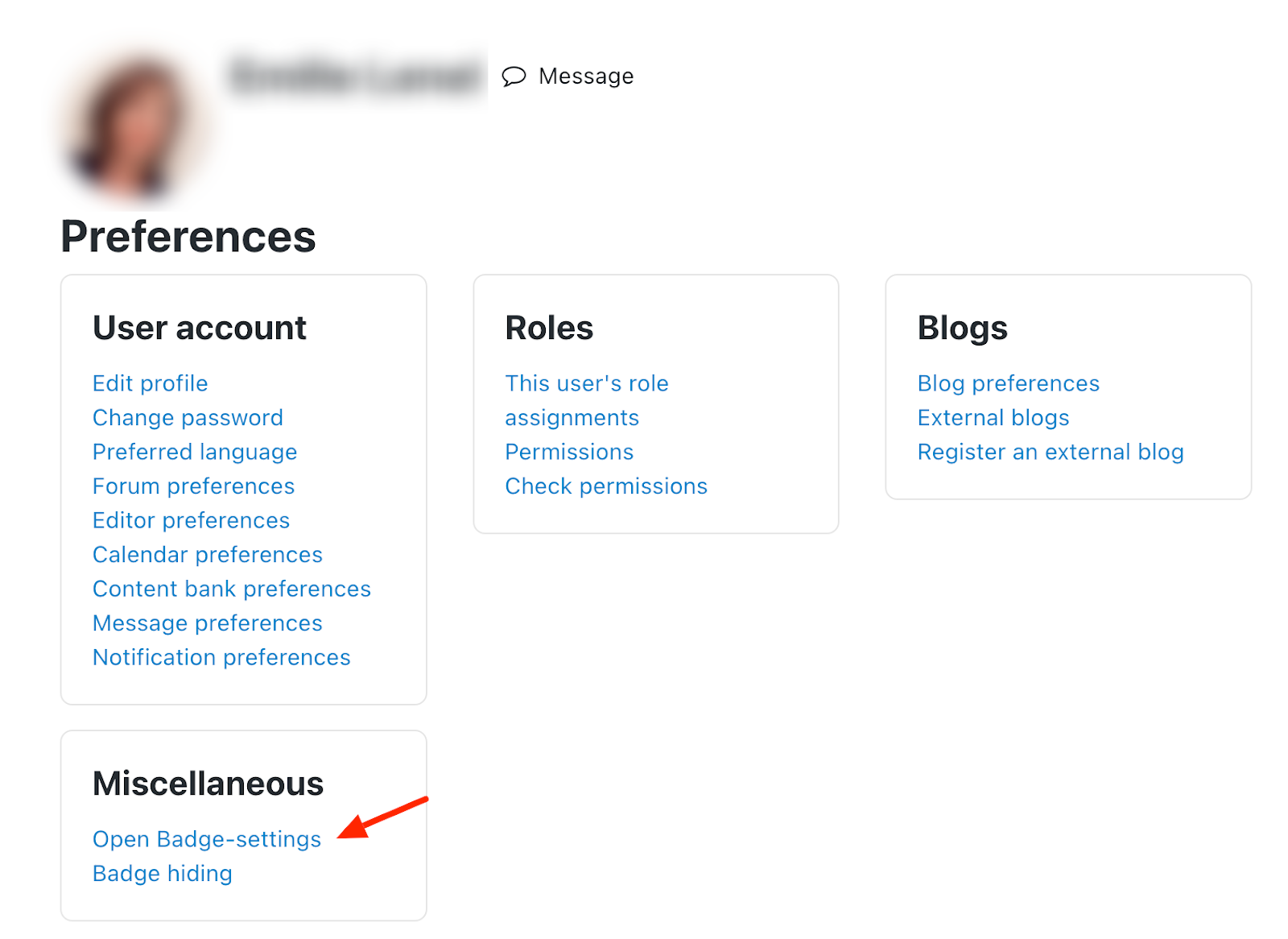
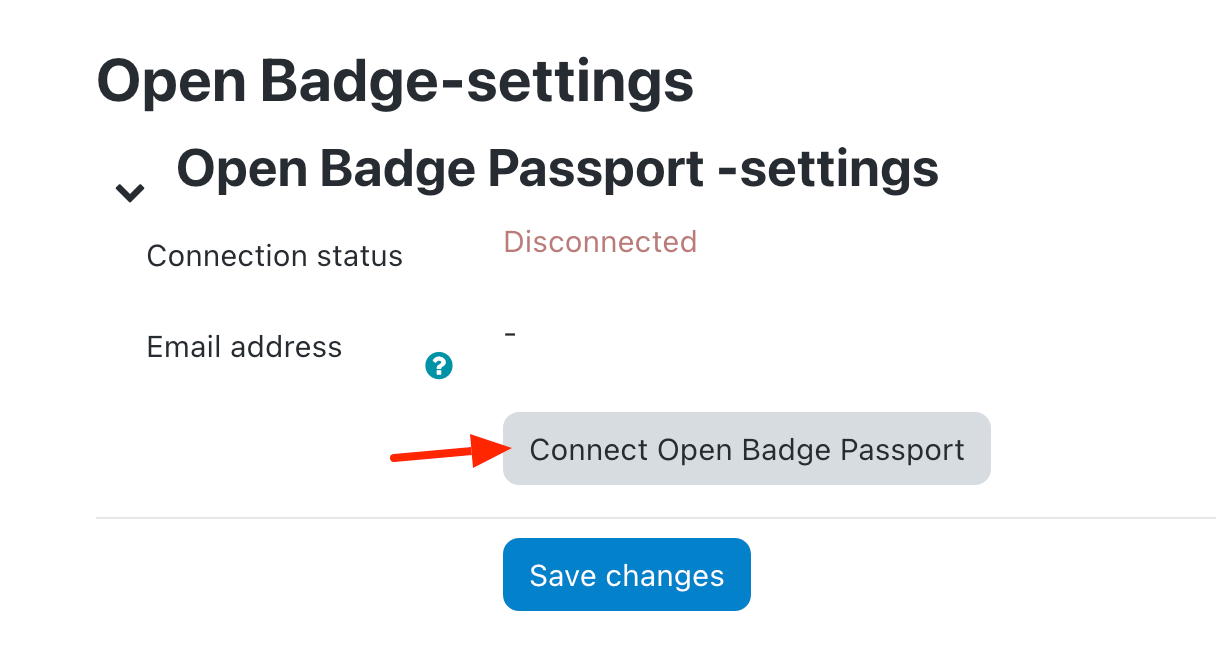
Users having an Open Badge Passport account can also display their badges on their Moodle profile. From
their preferences > Open Badge settings:
They can connect to their Open Badge Passport:
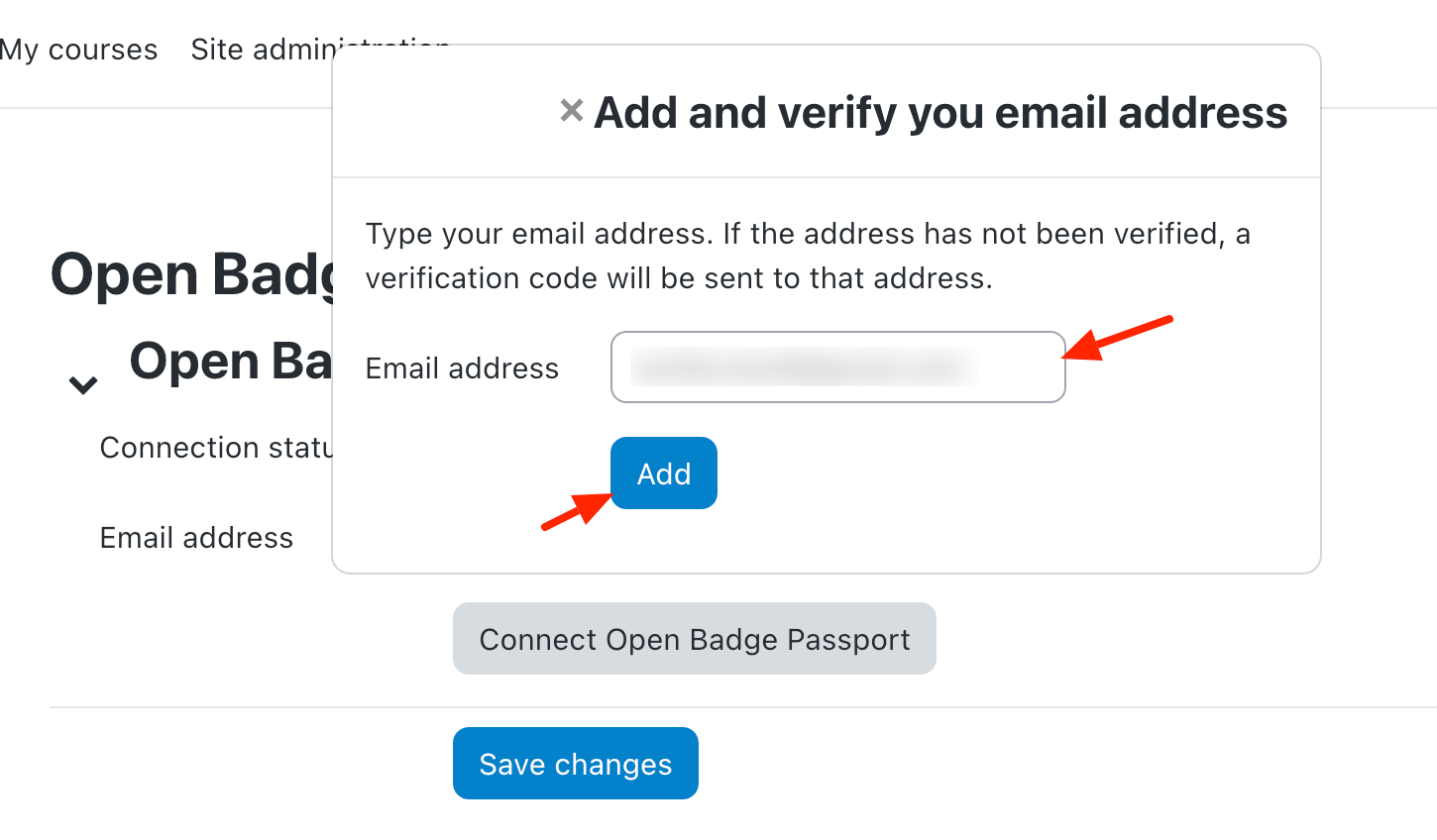
The user must provide their Open Badge Passport email address and add a connection.
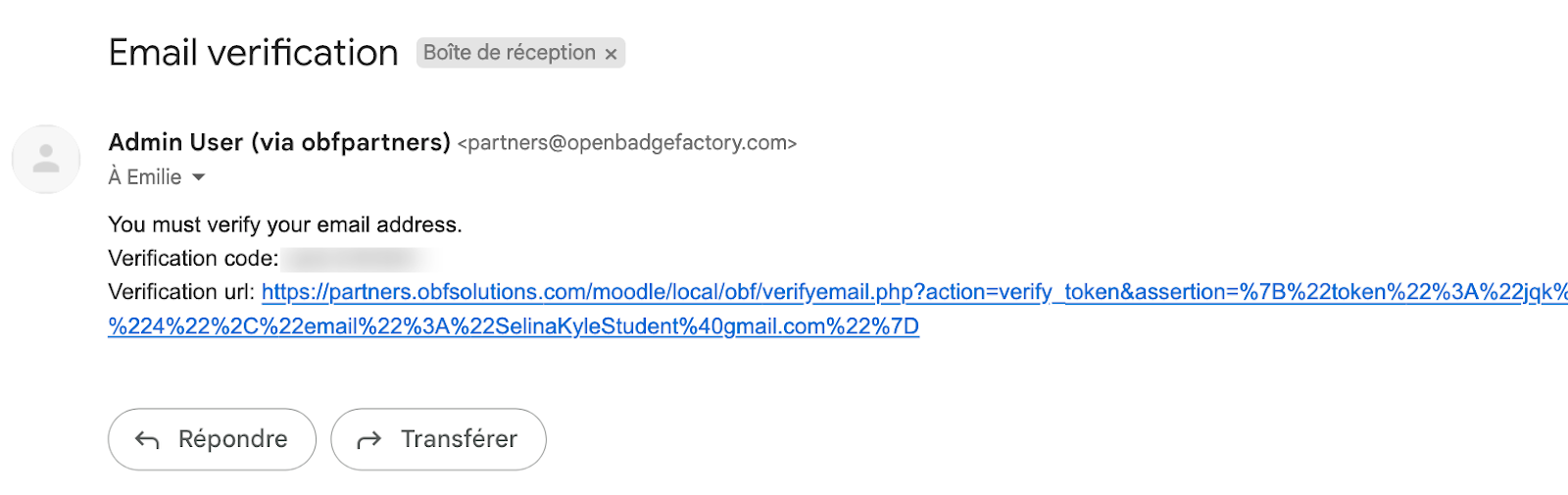
A verification email will be sent to the provided address:
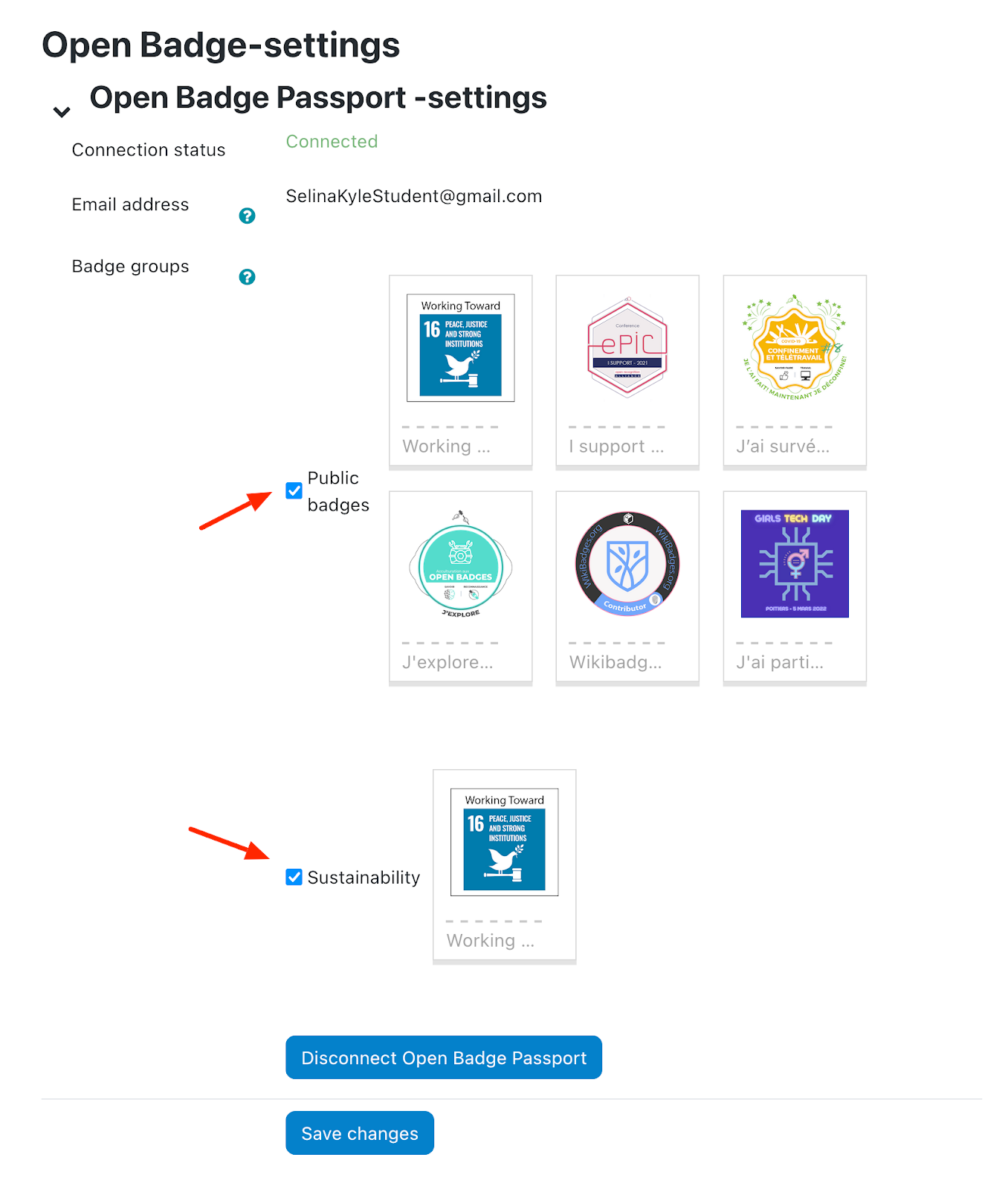
Once the Open Badge Passport is connected, the user can define what badge groups to make visible on his
profile (can be all public badges, or tagged badges):
Was this article helpful?
That’s Great!
Thank you for your feedback
Sorry! We couldn't be helpful
Thank you for your feedback
Feedback sent
We appreciate your effort and will try to fix the article